
Tasks
Do the campaign steps that need a person (LinkedIn, calls, manual emails, SMS, WhatsApp) in one place, and review AI drafts before they go out.
Tasks is where you do the campaign steps that need a person: LinkedIn invites and messages, calls, manual emails, SMS, WhatsApp messages and general tasks. Everything runs inside SmartReach, in your browser. There is nothing to install.
Click Tasks in the left-hand panel. The number next to it is how many tasks are due for you today.
Where tasks come from
- Campaign steps. Each manual step in a campaign creates a task for each prospect on the step's due day. The prospect's next step waits until the task is done, skipped or expires.
- Tasks you add yourself. Click Add new task in All tasks, or the + in an inbox conversation (Task creation from Inbox).
- AI drafts. In co-pilot mode, an AI-written email or LinkedIn message waits for your approval in Review AI drafts.
Each manual step has a window, set under If nobody does it in time in the step's settings. Its task stays open for that many sending days: 7 by default, 14 for a general task. If nobody does it in time, it ends as Expired, and the campaign either skips the step and carries on, or ends the prospect's sequence, as the step says.
The Tasks home
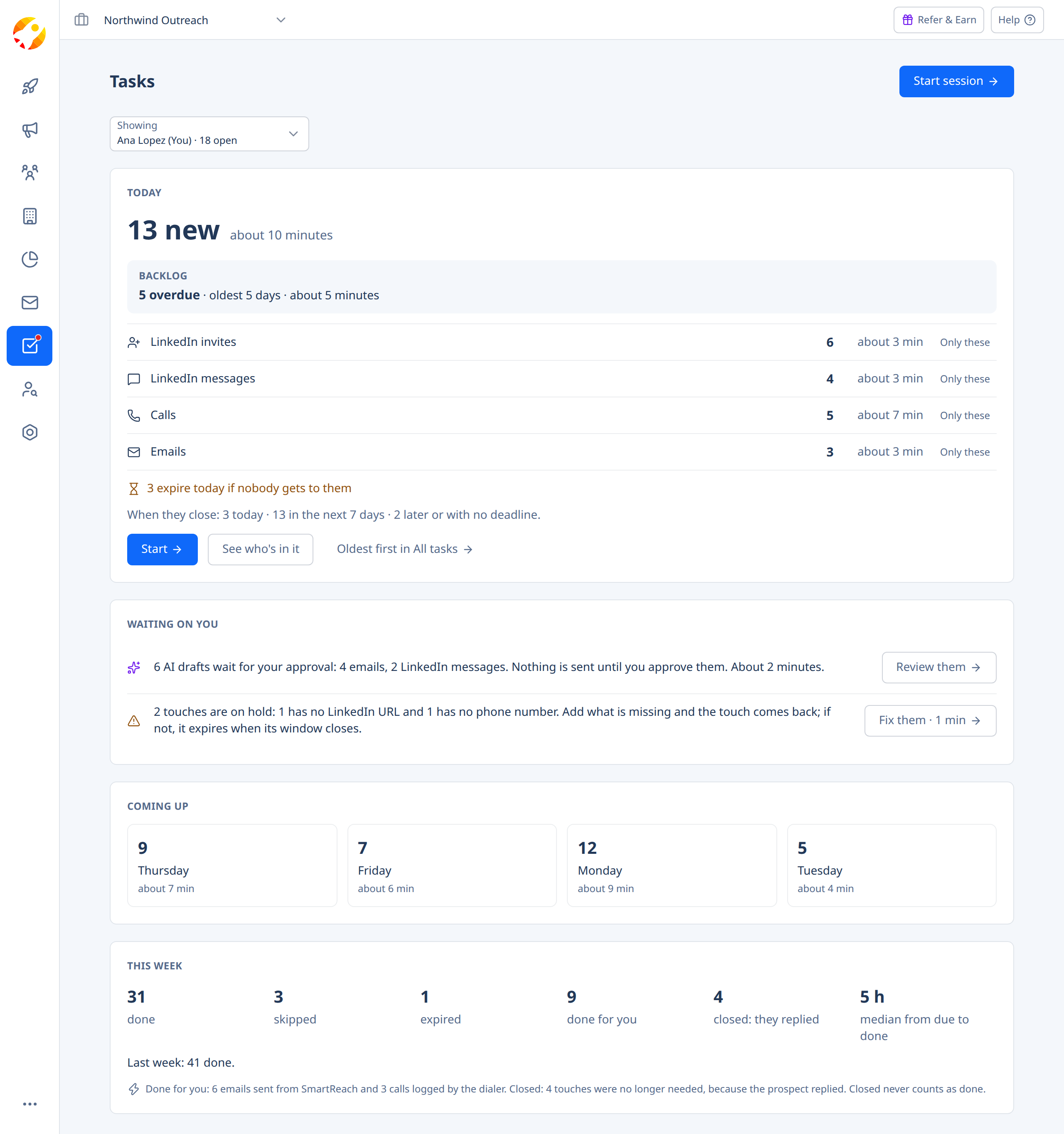
- Today: how many new tasks are due and about how long they'll take, plus the Backlog of overdue ones. Each kind of task has its own row, with Only these to do just that kind.
- Start session works through today's tasks one at a time. Just 30 minutes starts a shorter session when there's more. How a session works
- Waiting on you: AI drafts to approve, and tasks on hold in Needs info because the prospect has no LinkedIn profile or phone number.
- Coming up: your tasks for the next few days.
- This week: what was done, skipped, expired, done for you and closed.
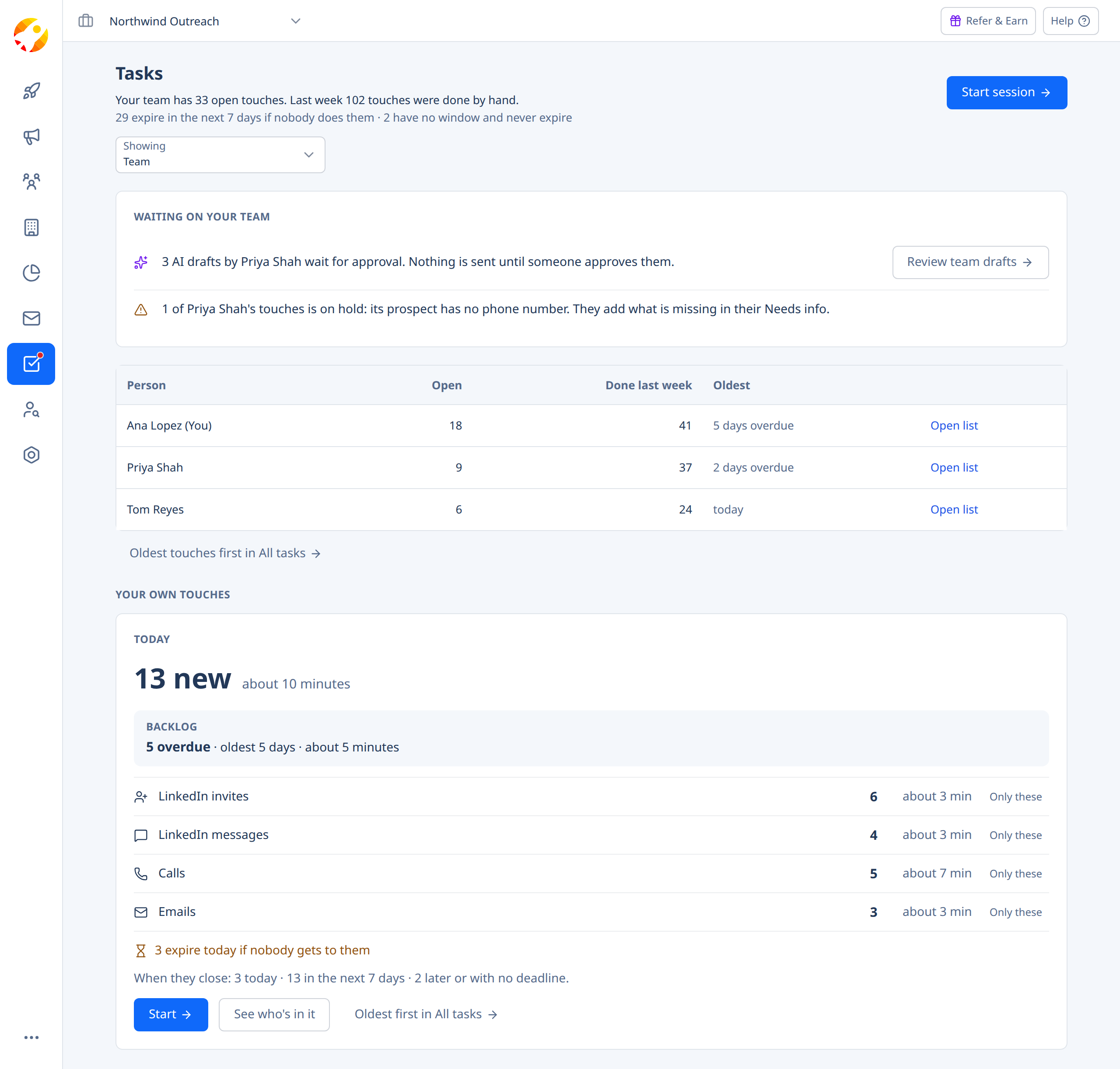
Managers open on their team: each person's open tasks, what they did last week and their oldest task, with Open list to see them. Use Showing to look at one person's tasks.
At the bottom, All tasks: filters and bulk actions opens the full list. Manage your tasks
Task statuses
| Status | What it means |
|---|---|
| Due | Due today or overdue, and still open. |
| Coming up | Due later this week. |
| Done | The task was done: by a person, or detected by SmartReach when the email was sent from the app or the call was logged by the dialer. |
| Skipped | Recorded as not done. Tasks marked Can't do are listed here too. |
| Closed | No longer needed, usually because the prospect replied. It never counts as done. |
| Expired | Nobody did it in time, so the campaign followed the step's rule. |
| Later | Put off with Later. It comes back on its day. |
| Failed | An automated step that couldn't run. Nothing went out. |
| Archived | Archived with its campaign or prospect, or because it was still not done 3 months after it was due. Nobody does it. |
Done, Skipped, Closed, Expired, Failed and Archived show the last 30 days unless you pick dates. Failed, Archived and Later appear only when they have tasks.
Updated 3 days ago