
Using ProspectDaddy
Learn how to use ProspectDaddy Chrome extension to find business emails from LinkedIn and add prospects directly to your Smartreach campaigns.
ProspectDaddy is a social-business prospect finder, Chrome extension that lets you find the email address of prospects whom you search on social-business platforms like Linkedin.
It helps you build targeted lead lists directly from LinkedIn. It enriches data from LinkedIn search results, providing business emails, LinkedIn profile URLs, company names, job titles, and location details. Send enriched prospects straight to your SmartReach campaigns.
Entitlement
ProspectDaddy comes free with your SmartReach subscription. Credits are included with your plan.
How It Works
Step 1 : Install the ProspectDaddy Extension
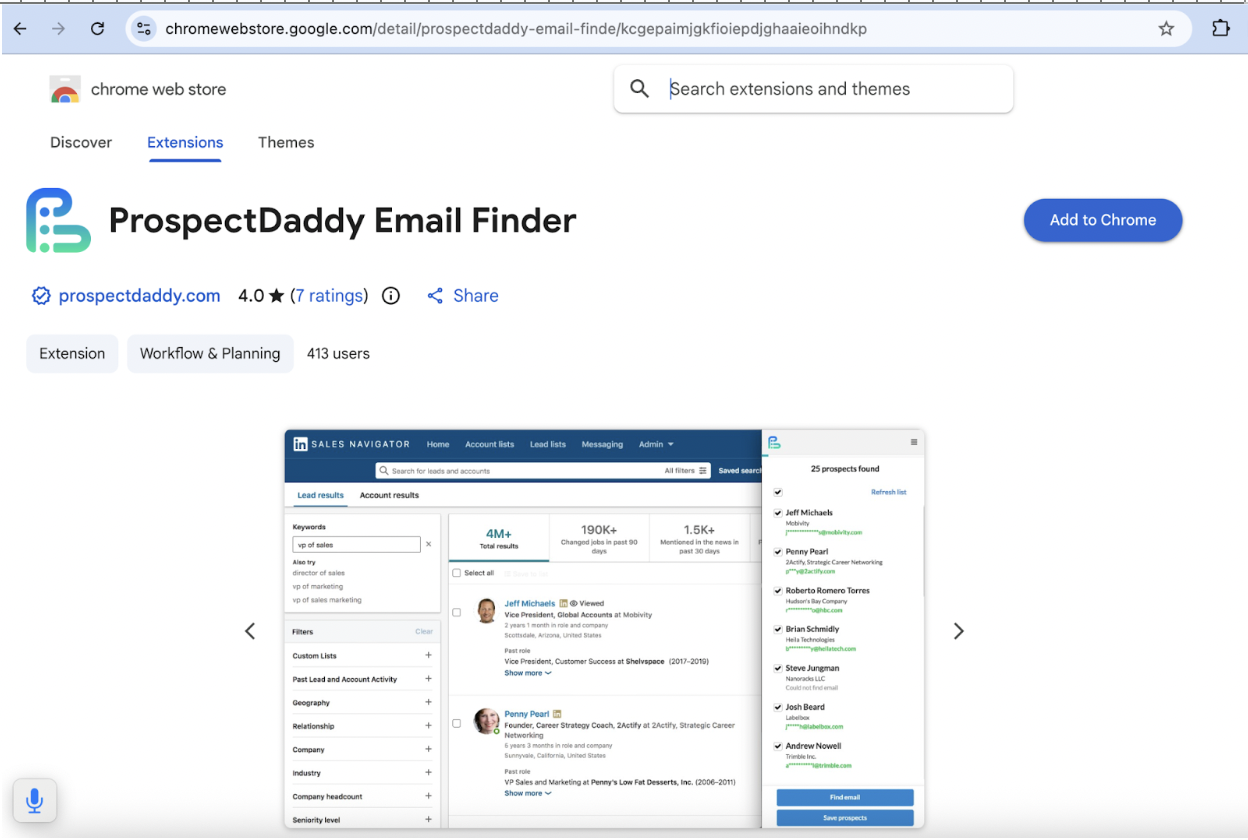
- Open the Chrome Web Store and search for "ProspectDaddy"
- Click "Add to Chrome" to install the extension
- Make sure you're signed in to your Chrome account
Sign in to LinkedIn on the same browser
Note: ProspectDaddy automatically signs in once you're logged into SmartReach and LinkedIn on the same browser (no separate login required).
Step 2 : Run a LinkedIn Search
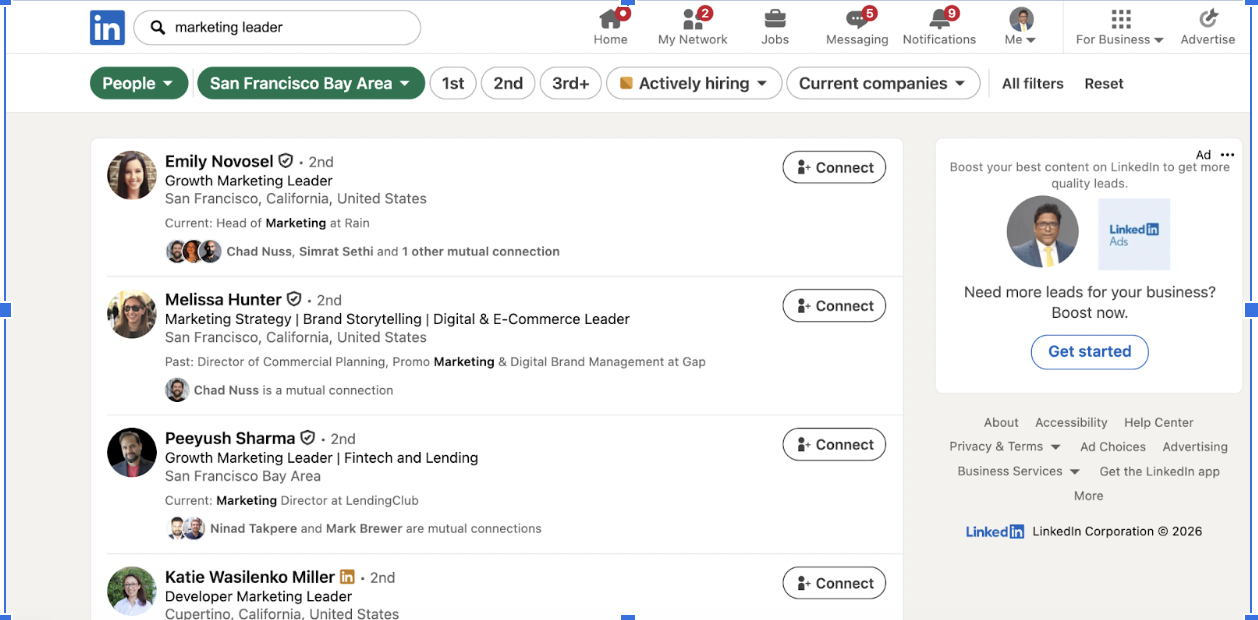
- Go to LinkedIn and click on the search bar
- Enter your search criteria (e.g., "Marketing Leaders in San Francisco")
- Use LinkedIn's filters to narrow your search by location, industry, company size, or other criteria
Review the search results to confirm they match your target audience
Step 3: Enrich Prospect Data
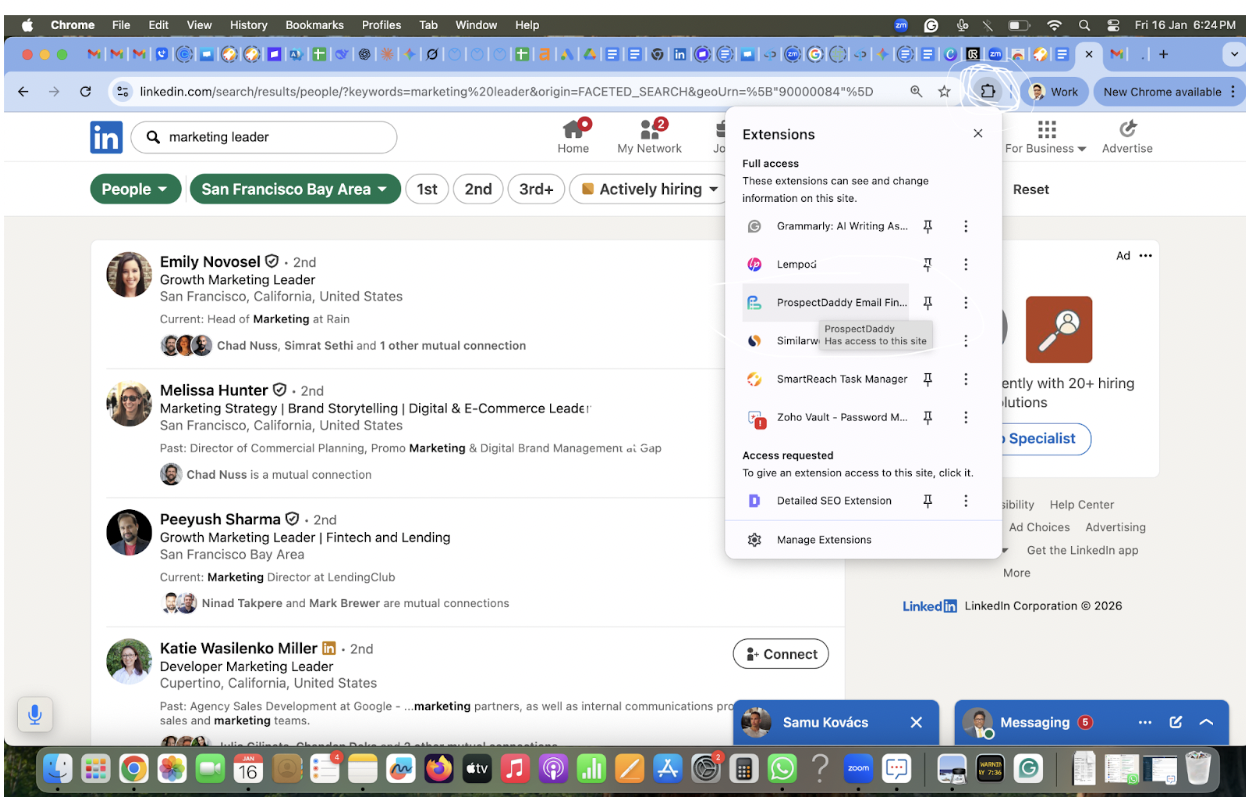
- Click the ProspectDaddy extension icon in your Chrome toolbar (as per the image above)\
- Click "Find Prospects" to start enriching data
- ProspectDaddy analyzes the prospects on the current page and enriches their information
- Navigate through additional LinkedIn search result pages (each page shows 10 results)
ProspectDaddy enriches data from up to 100 search results per session
What enriched data does ProspectDaddy provide?**
1.First name
2.Last name
3.Business email addresses (only professional emails)
4.LinkedIn profile URLs
5.Company names
6.Job titles/designations
7.Location information
Step 4: Save and Send Prospects to SmartReach
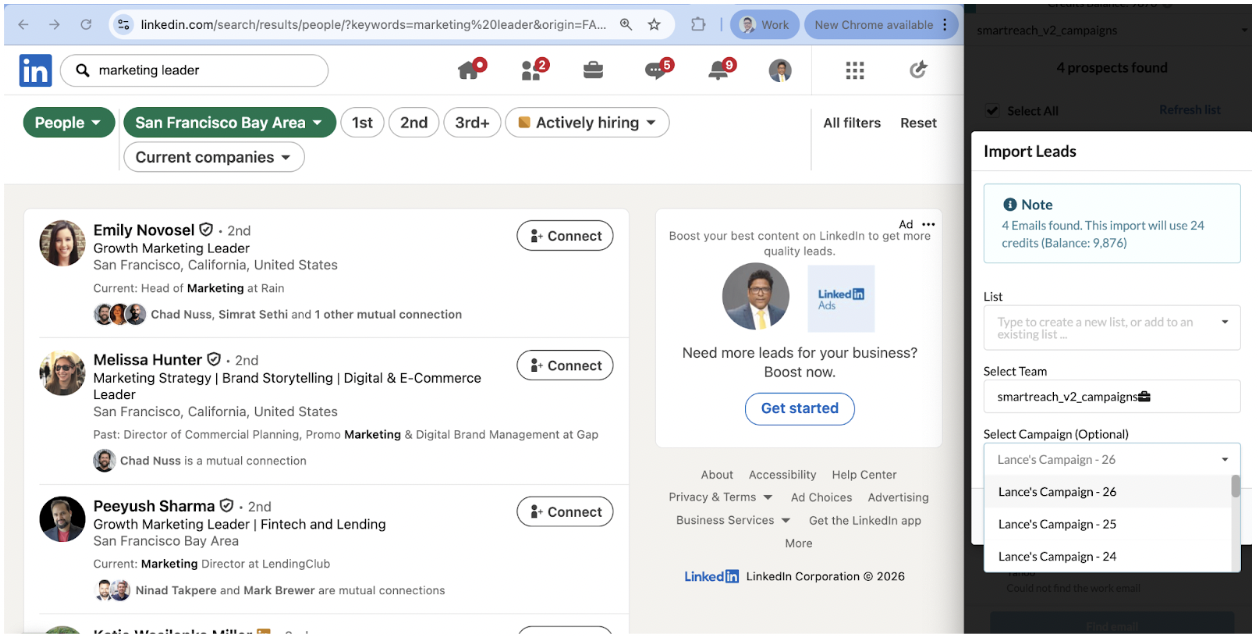
- Click "Save" within the ProspectDaddy extension
- Choose one of two options:
- Send to SmartReach: Add prospects to your SmartReach account
Send to Campaign: Add prospects directly to a specific SmartReach campaign
Select your preferred option and confirm
Your prospects are now ready for your cold email or multichannel outreach campaigns.
Notes
Enrich data from individual LinkedIn profiles: You can use ProspectDaddy on a single prospect's LinkedIn profile page. Click the extension icon while viewing their profile to get their enriched business email and other details.
Enrich data from company pages: Visit a company's LinkedIn page and view their employee list. Click the ProspectDaddy extension to get enriched data for all employees shown in the results.
ProspectDaddy processes 10 results per page: LinkedIn displays 10 search results per page. To enrich data for 100 prospects, you'll need to navigate through 10 pages, with ProspectDaddy analyzing each page as you go.
Credits are included with your SmartReach subscription: ProspectDaddy credits come bundled with your SmartReach plan—no additional purchase necessary.
Auto-login feature: Once you're signed in to SmartReach and LinkedIn on your Chrome browser, ProspectDaddy automatically logs you in. No need to enter separate credentials.
Frequently Asked Questions
Q: How many prospects can I enrich at once?
A: You can enrich up to 100 LinkedIn search results per session. Since LinkedIn shows 10 results per page, you'll need to navigate through 10 pages.
Q: What types of email addresses does ProspectDaddy provide?
A: ProspectDaddy only provides business email addresses, not personal emails.
Q: Do I need to sign in separately to ProspectDaddy?
A: No. ProspectDaddy automatically signs you in when you're logged into SmartReach and LinkedIn on the same Chrome browser.
Q: Can I use ProspectDaddy on individual LinkedIn profiles?
A: Yes. Visit any LinkedIn profile and click the ProspectDaddy extension to get that person's enriched business email and details.
Q: Can I enrich employee data from company pages?
A: Yes. Visit a company's LinkedIn page, view their employee list, and use ProspectDaddy to get enriched data for the employees shown in the results.
Q: How do ProspectDaddy credits work?
A: ProspectDaddy credits are included with your SmartReach subscription. Each data enrichment uses credits from your account balance.
Q: Can I send prospects directly to a campaign?
A: Yes. When saving prospects, you can choose to send them directly to a specific SmartReach campaign or add them to your general prospect list.
Q: What browsers support ProspectDaddy?
A: ProspectDaddy is a Chrome extension and works on Google Chrome. Make sure you're signed in to your Chrome account before installing.
Updated 3 months ago