
Configure SMTP/IMAP Accounts (Bulk Upload Emails via CSV)
This guide walks you through connecting multiple email accounts via SMTP/IMAP for high-deliverability outreach.
Overview :
SmartReach.io allows you to connect unlimited SMTP/IMAP email accounts (Gmail, Outlook, custom domains, etc.) to send and receive emails directly from your own inboxes. This ensures branded, high-trust outreach with full reply tracking and inbox rotation to scale safely.
Step by step Tutorial
Step 01: Download sample file and prepare a CSV file for upload.
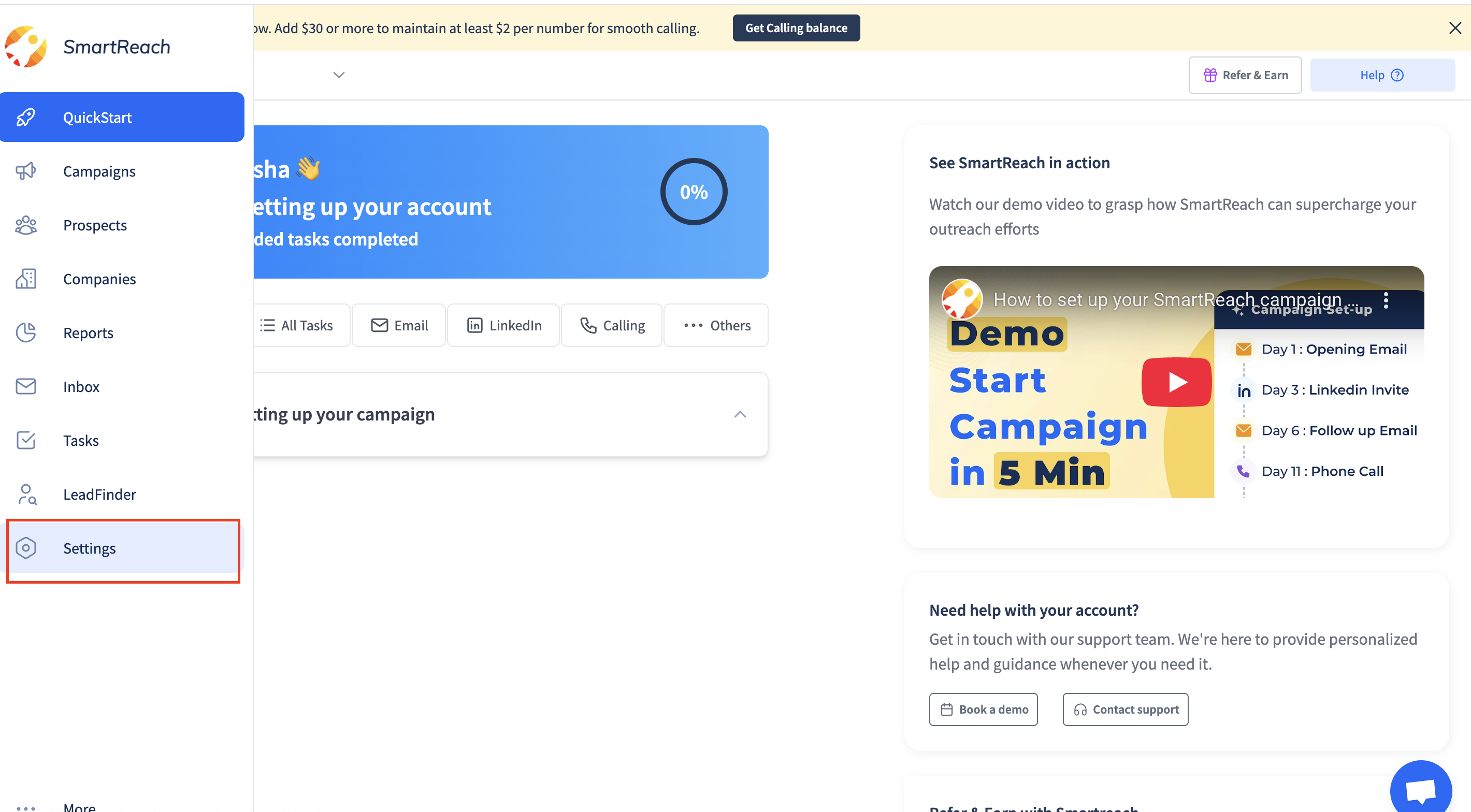
- Login to your SmartReach account.
- Go to settings > Email Accounts.
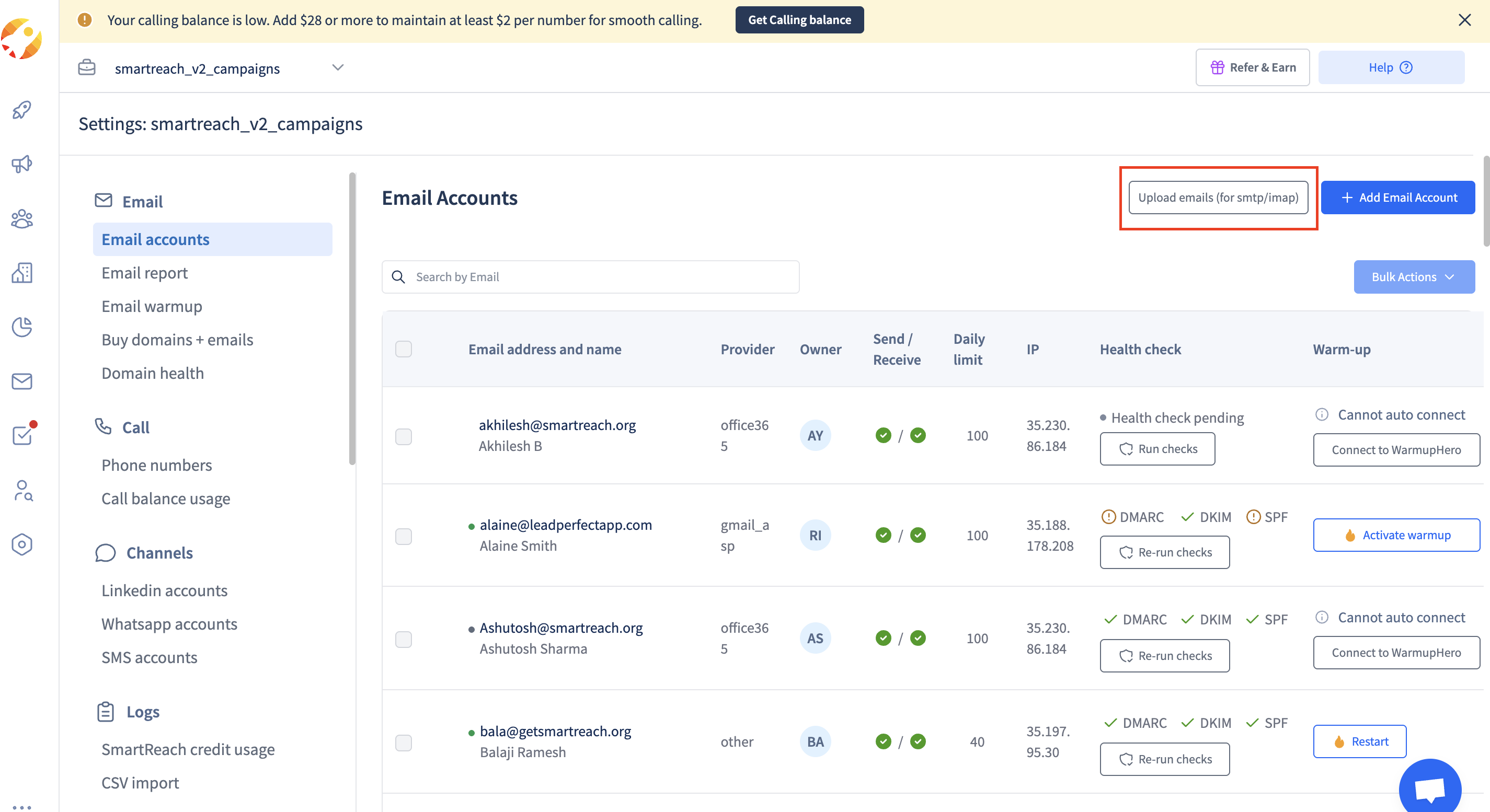
- Click on Upload Emails (for smtp/imap)
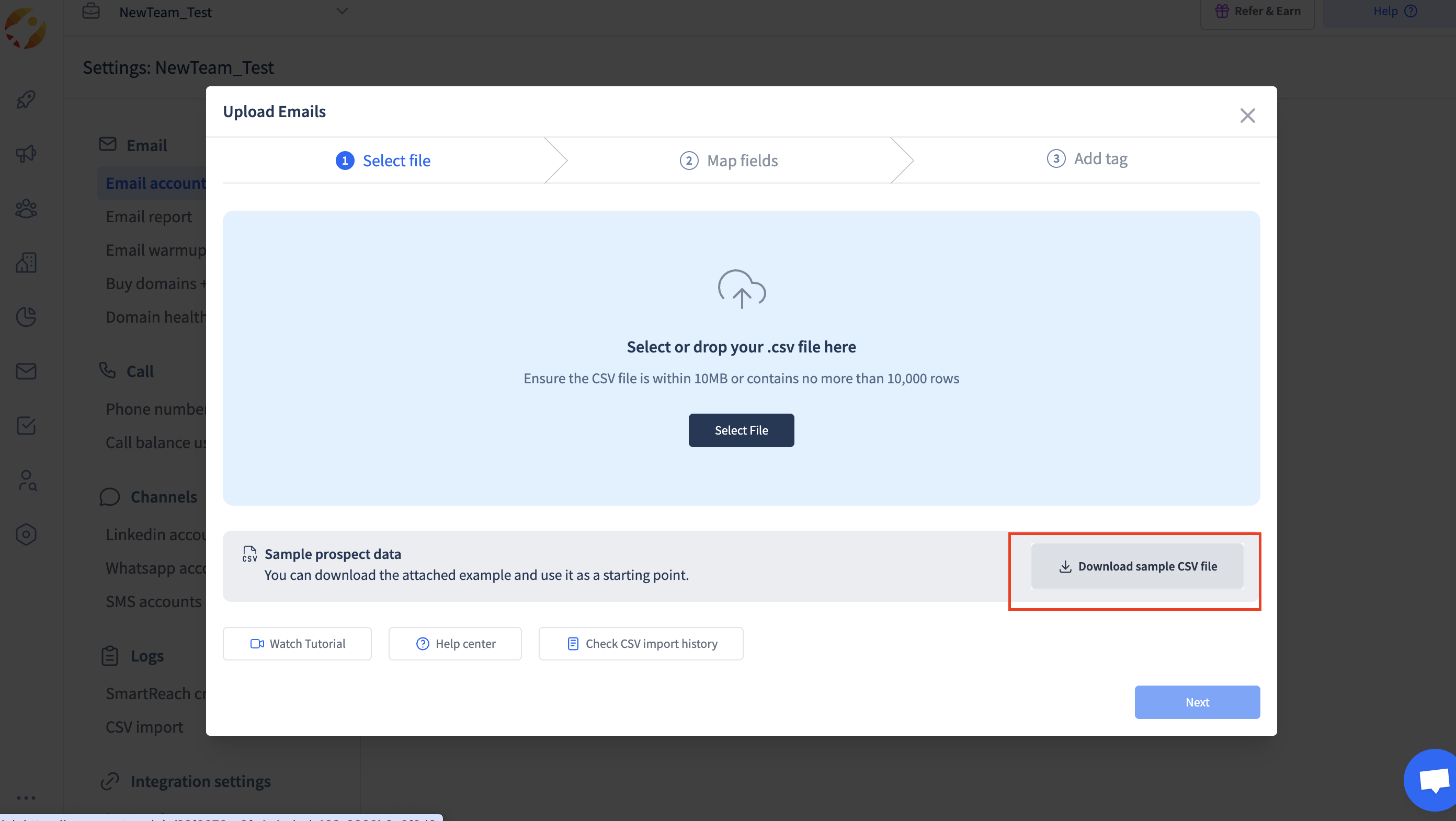
- Download sample CSV file.
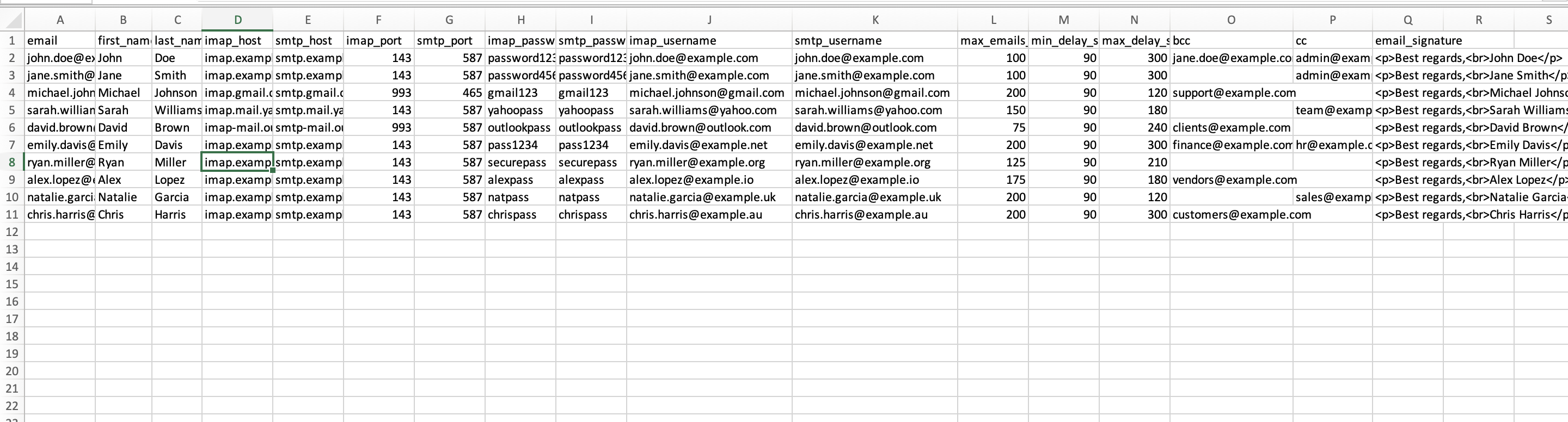
Step 2 : Fill in your SMTP/IMAP details.
- Use this exact column structure Sample CSV
- Fill in the details.
Step 03: Upload your file.
- " Select your file" and click on next.
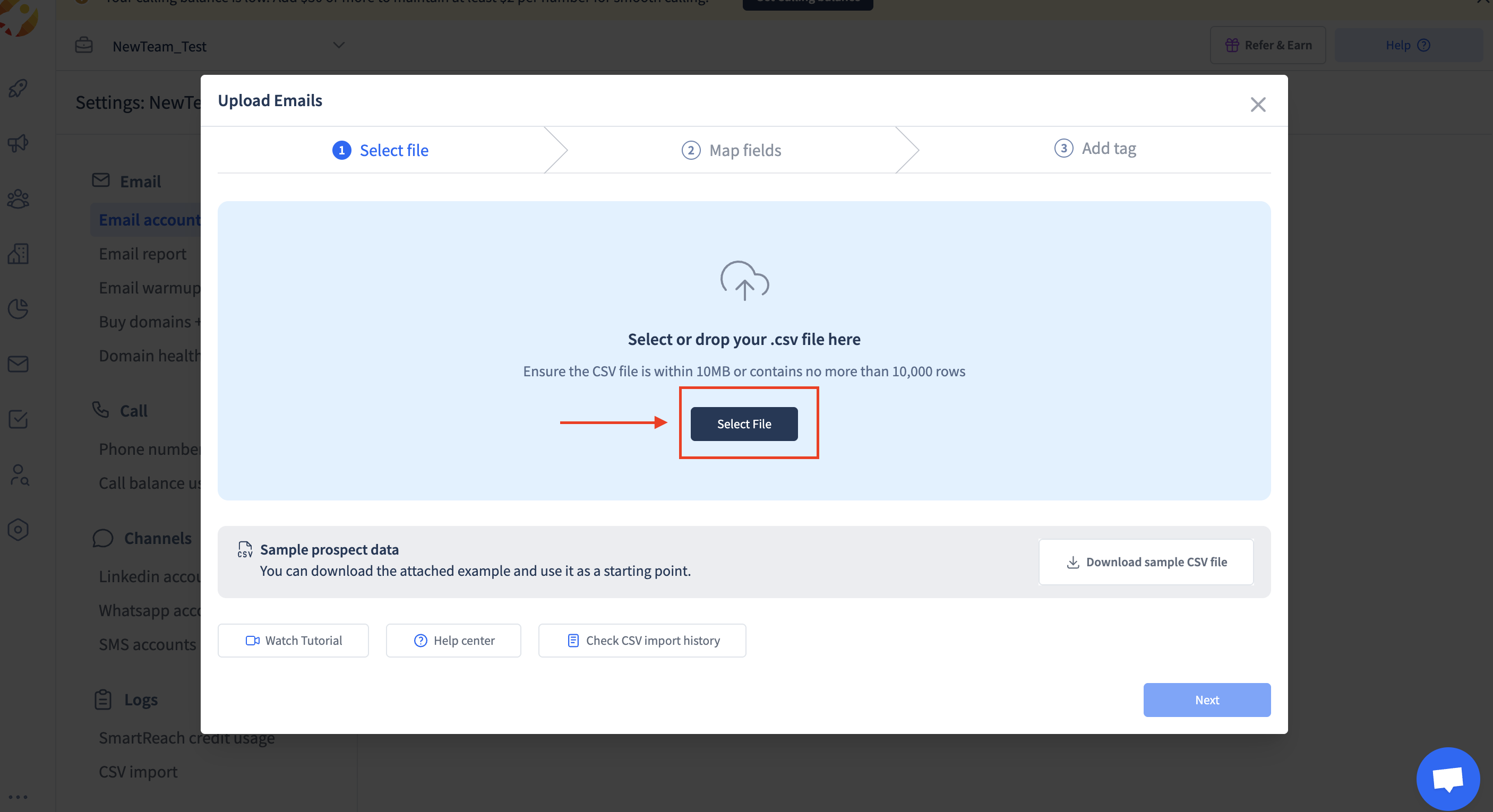
- Map the fields and click on next.
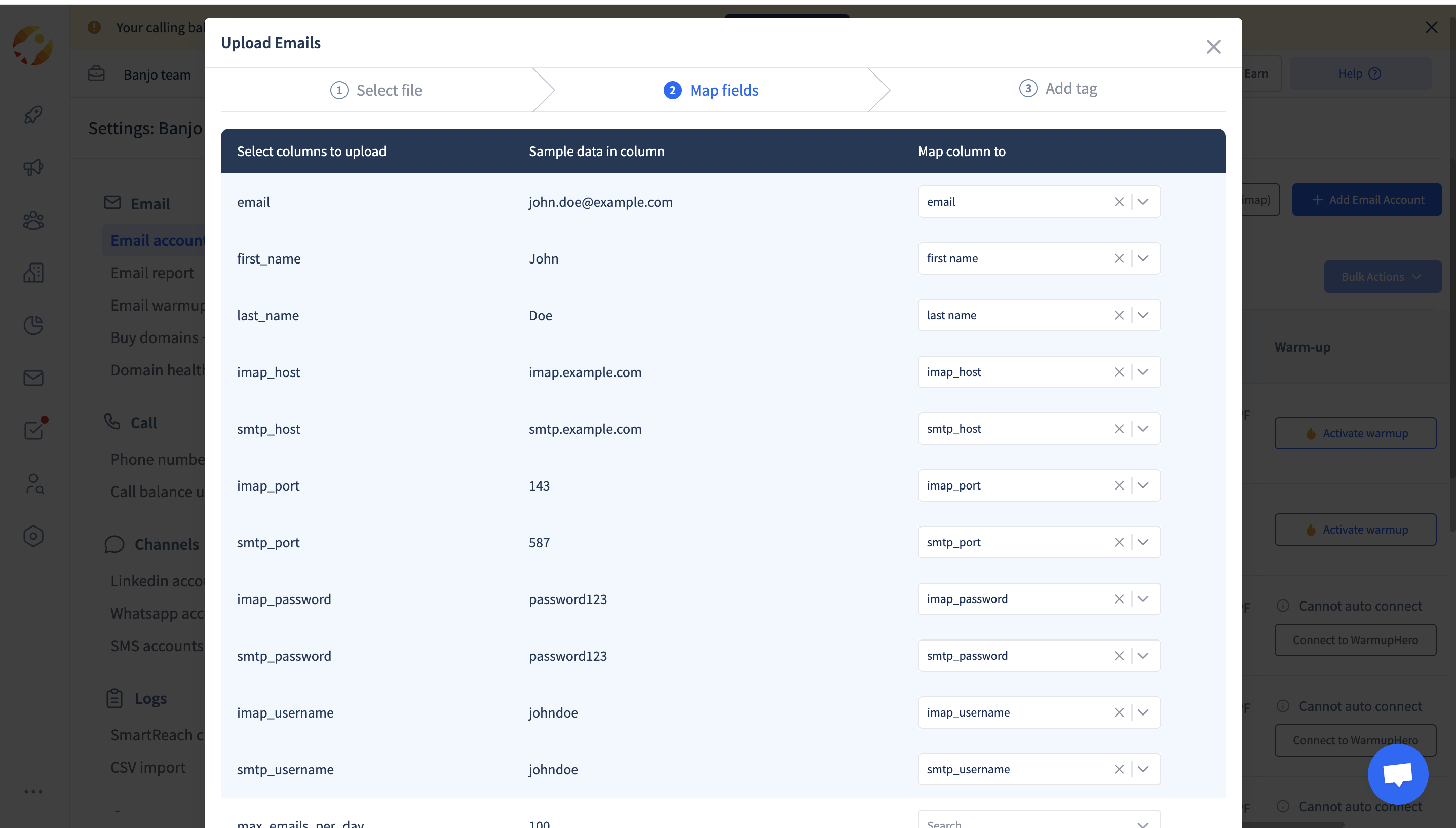
Step 04 : Proceed to finalize the file import.
- Click on "start import", and wait till your file is uploaded.
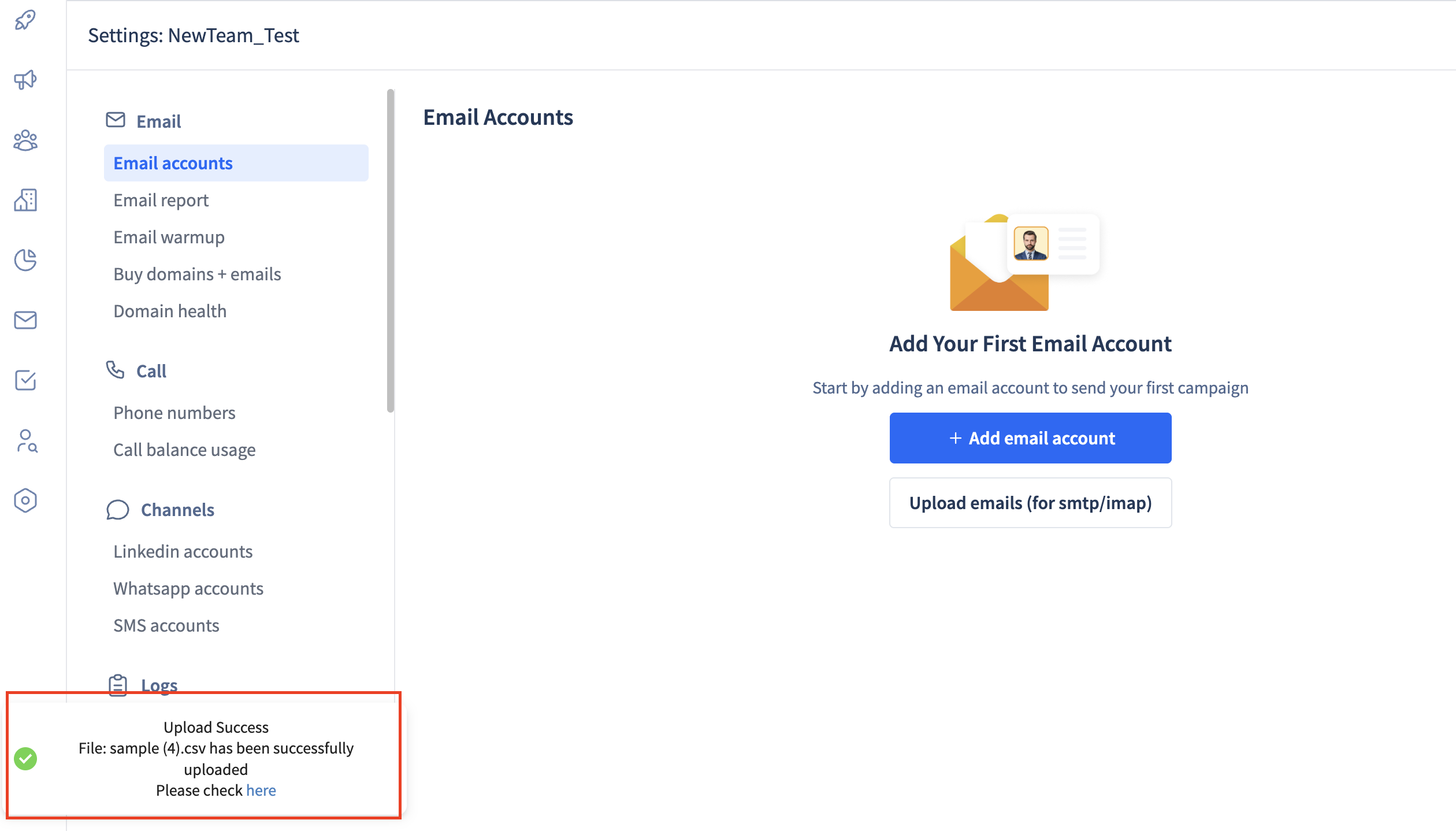
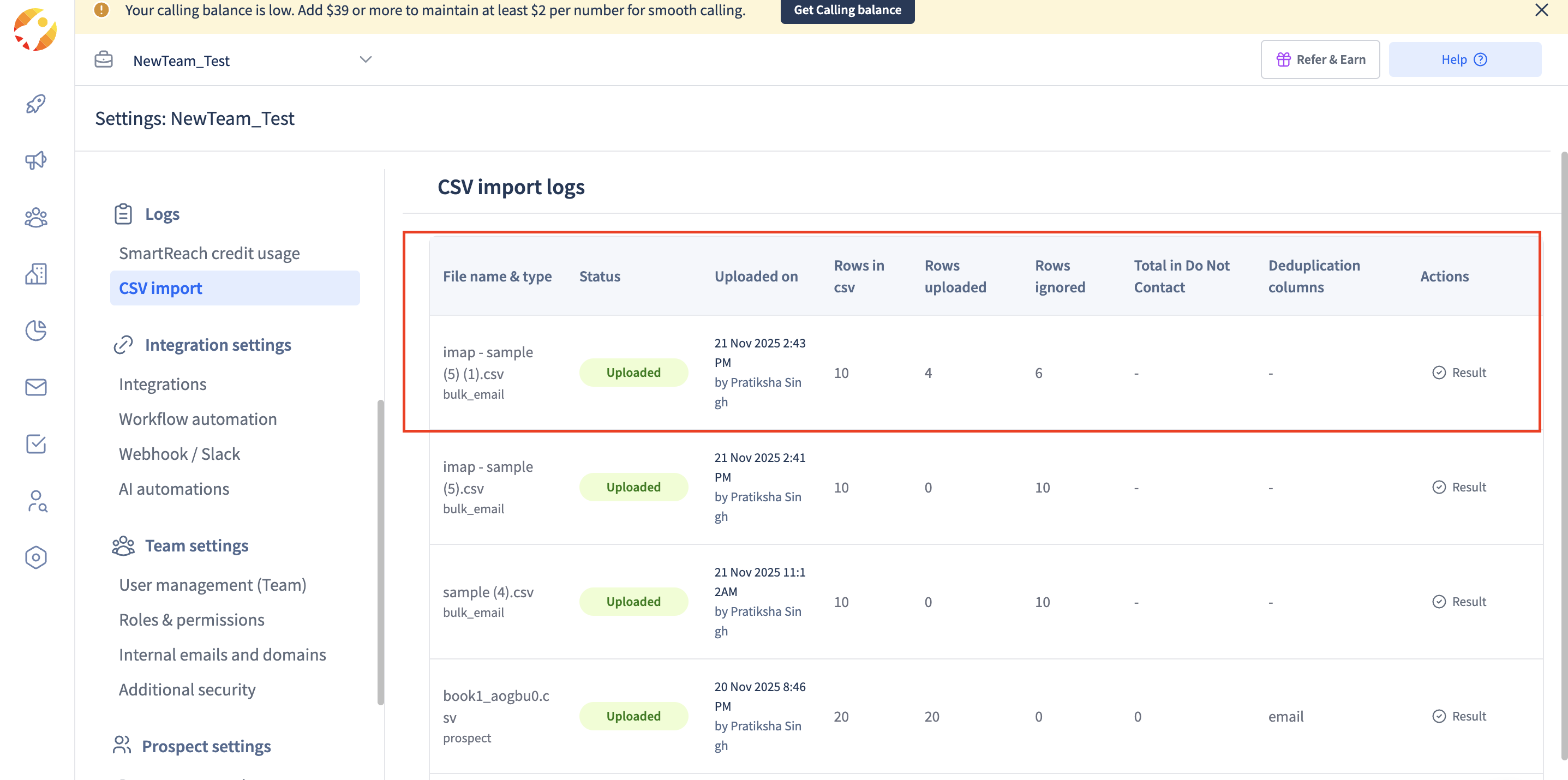
- In CSV import logs you can check the file is uploaded successfully.
Note :
- Max sending quota per email in a single upload is more than 200 emails.
- Minimum delay is less than 90 sec.
- Max email delays more than : 1000 sec
- max file size of 10 MB.
Updated about 2 months ago
Did this page help you?