
Integrate Google Sheets using Zapier
Connect Google Sheets with your favorite apps using Zapier to automate data updates and workflows effortlessly.
Overview
This integration connects Google Sheets with SmartReach.io via Zapier, allowing automatic syncing of prospect data. Set triggers for new or updated rows in your Sheet to create prospects in SmartReach, saving time on manual uploads and keeping your cold email, calling, LinkedIn, and WhatsApp campaigns organized. No coding is required, making it ideal for sales teams scaling outreach.
View the video below for a brief walkthrough.
Step-by-Step Tutorial
Step 1: Obtain Your SmartReach API Key
- Log in to your SmartReach dashboard.
- Navigate to Team Settings > Integrations.
- Scroll to the Zapier section and click Get API Key.
- View or generate a new API key if necessary, then copy it.
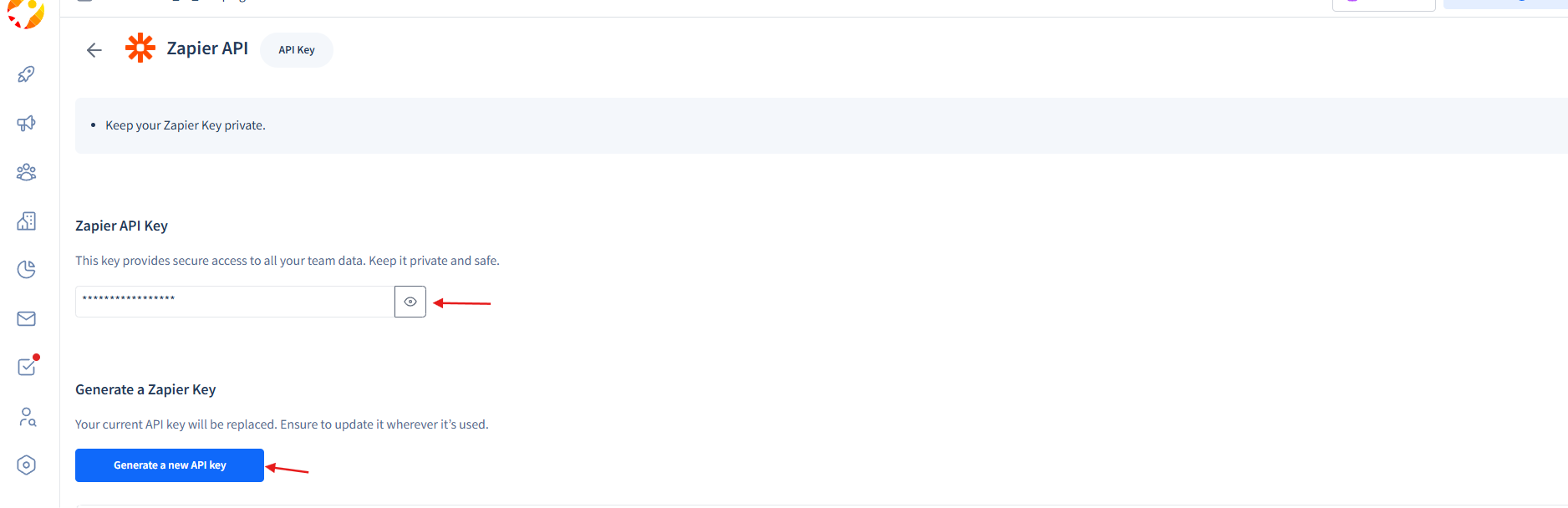
Step 2: Connect SmartReach in Zapier
- Go to Zapier.com and log in.
- Click Apps in the left menu.
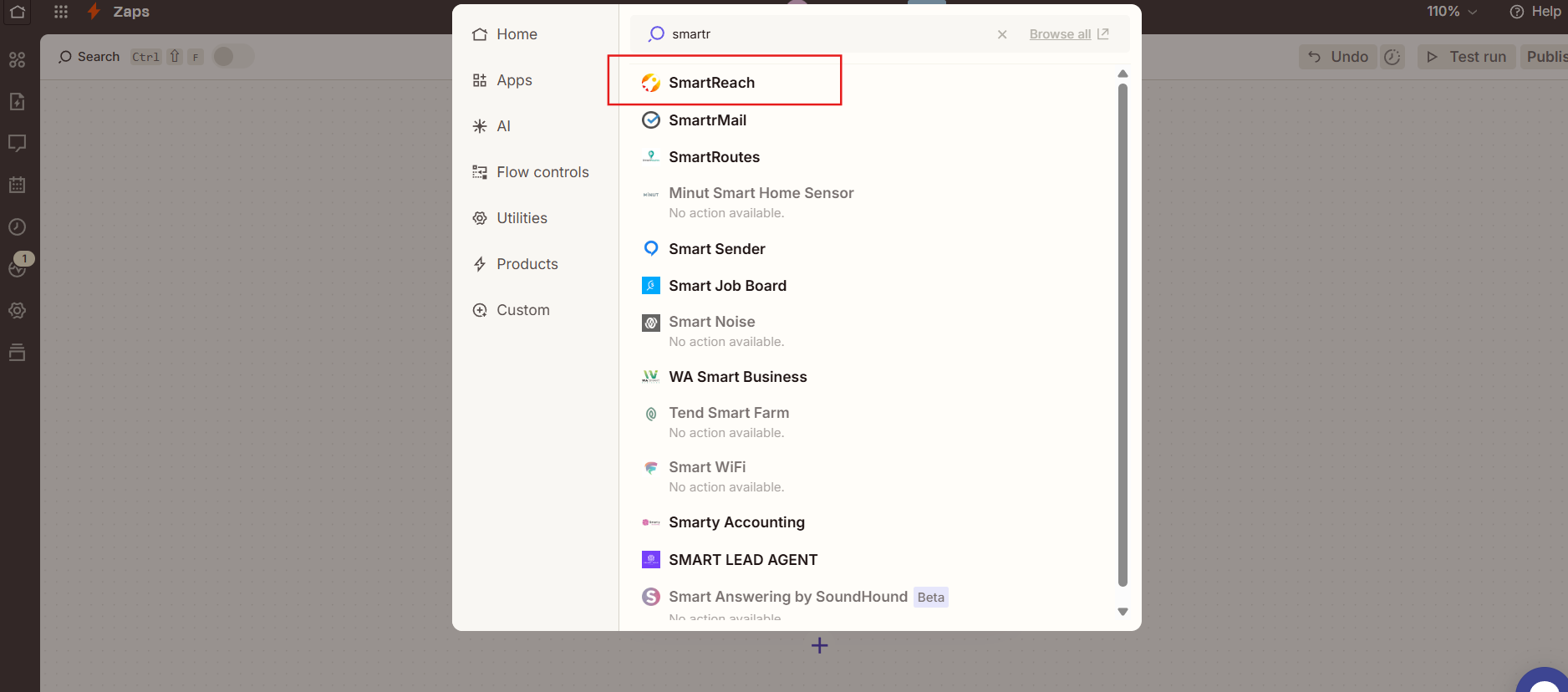
- Select Add Connection, search for SmartReach, and paste your API key to connect.
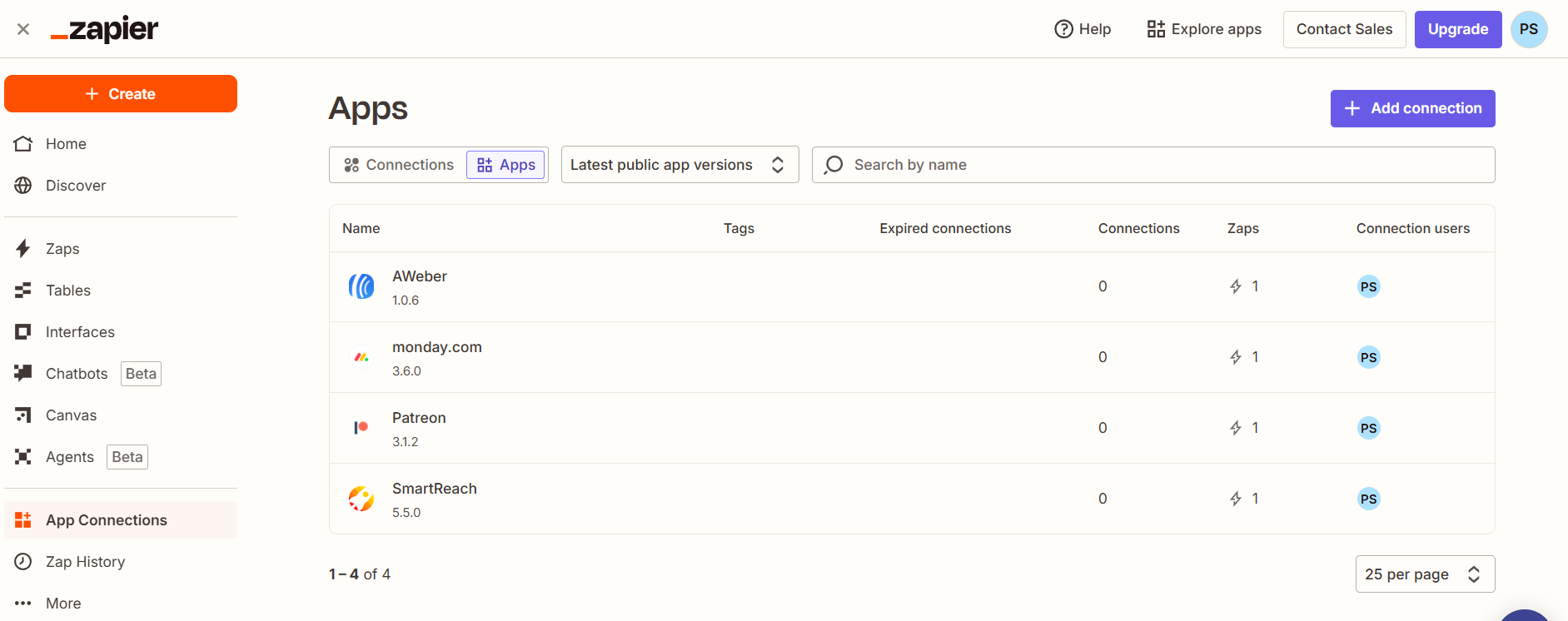
Step 3: Create a New Zap
- In Zapier, click Create Zap to start a new workflow.
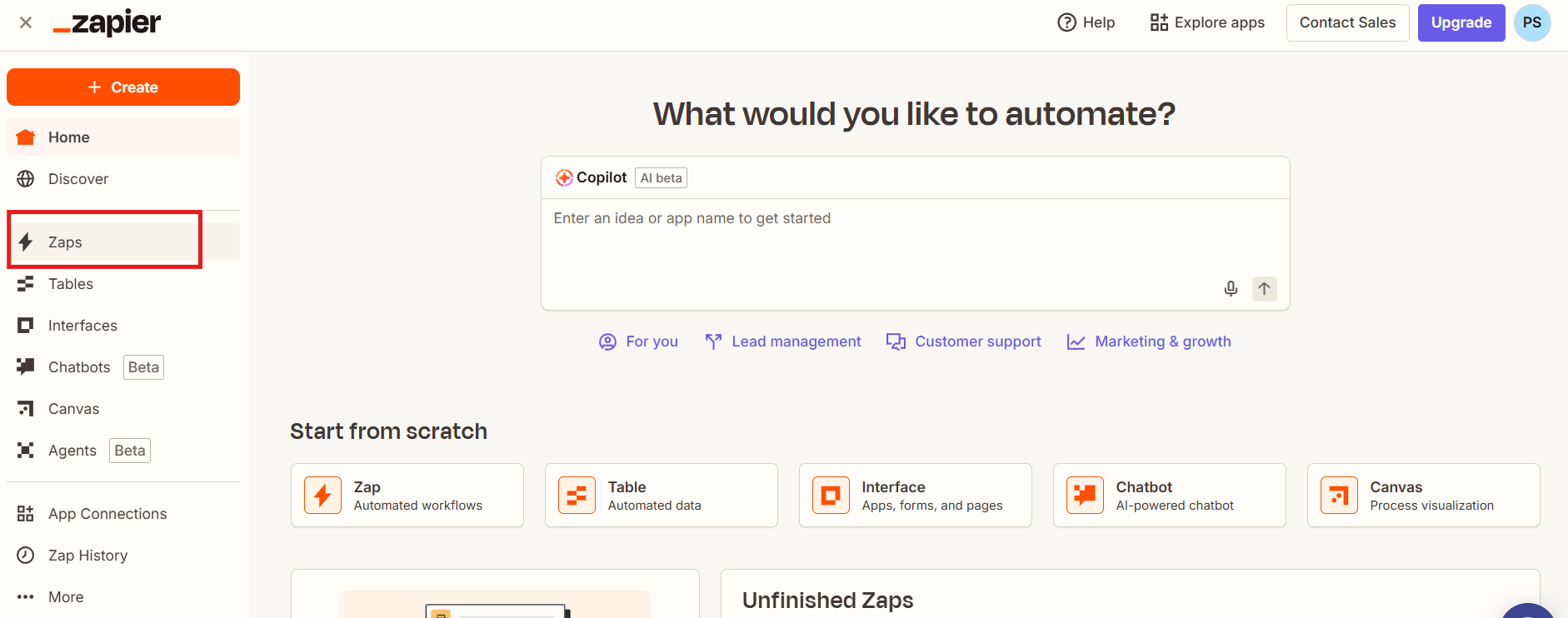
Step 4: Set Up the Trigger in Google Sheets
- Search for and select Google Sheets as the trigger app.
- Choose New or Updated Spreadsheet Row as the trigger event.
- Connect your Google account.
- Configure by selecting the spreadsheet, worksheet, and trigger column.
- Test the trigger to confirm it works.
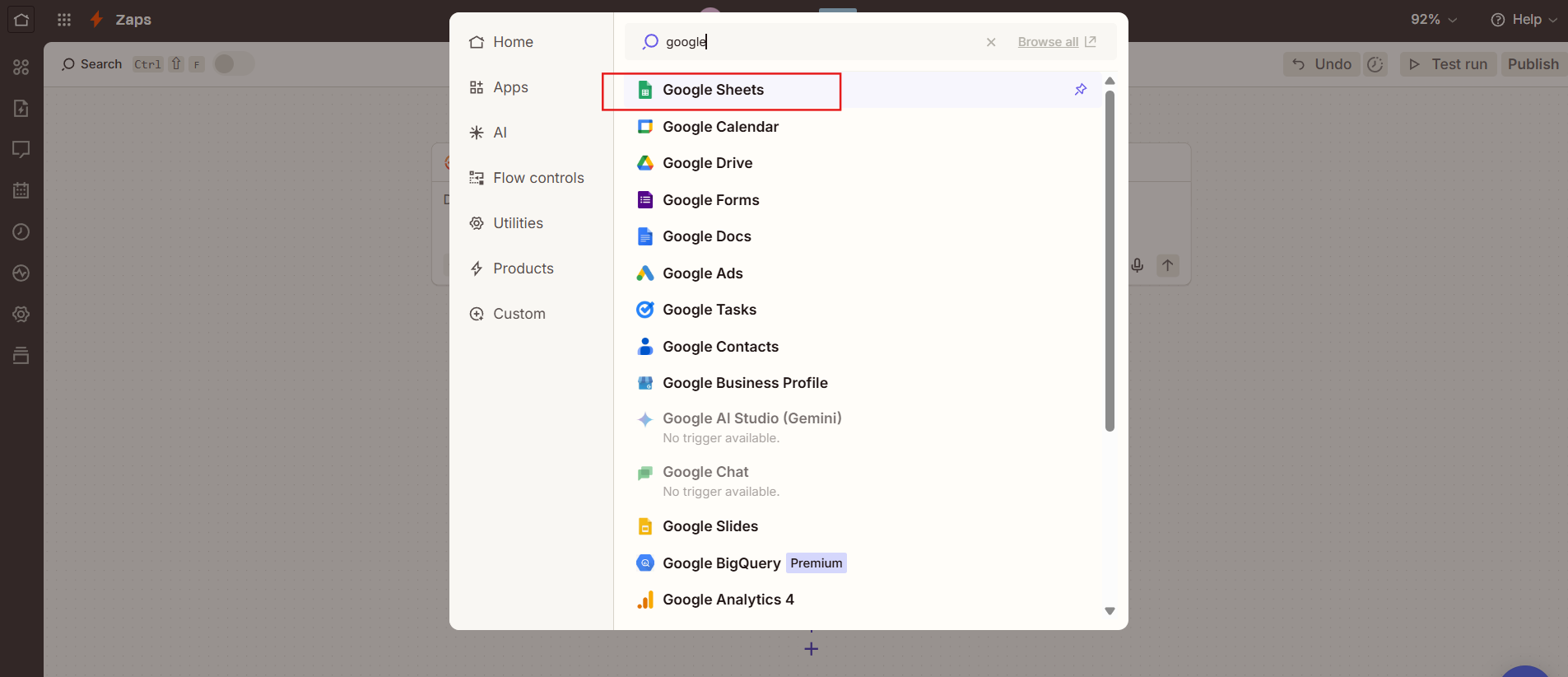
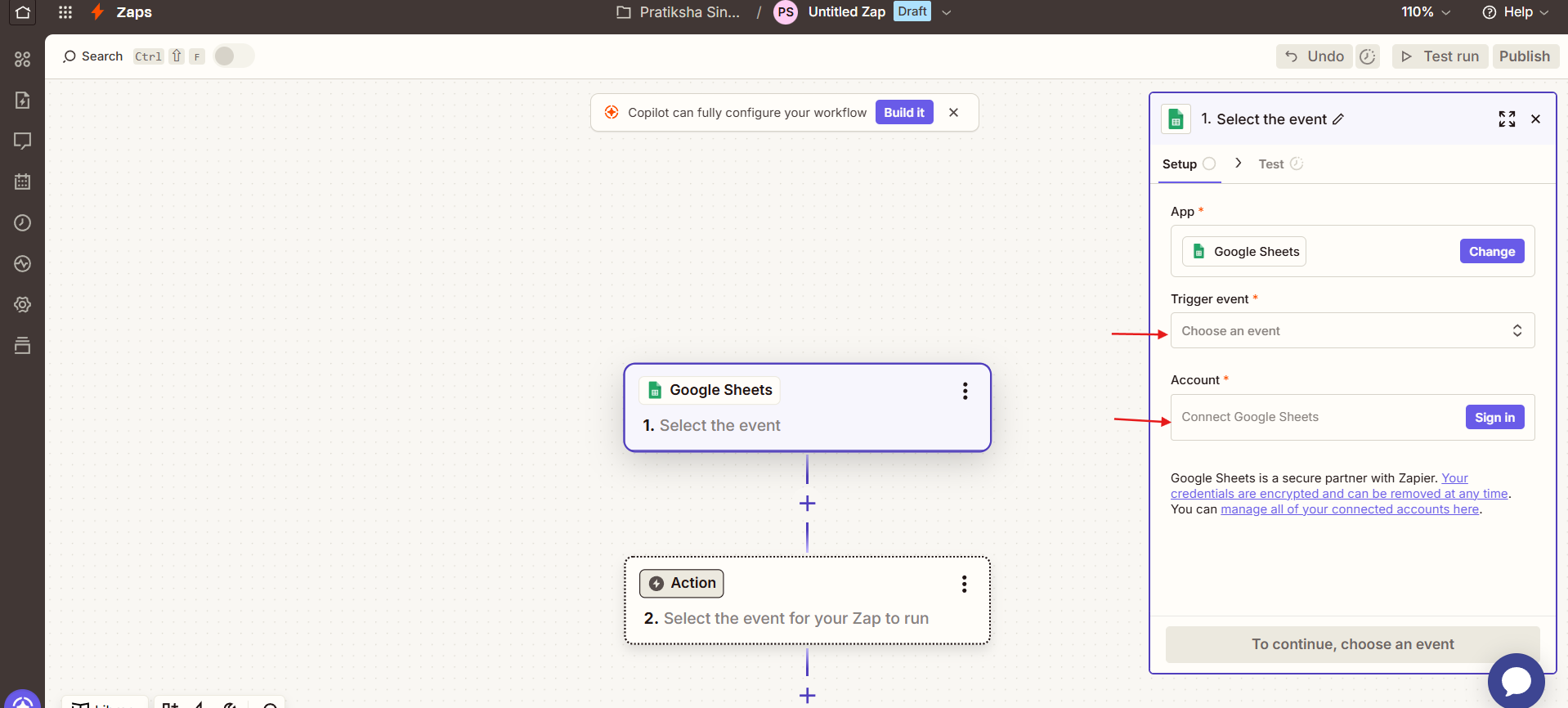
Step 5: Set Up the Action in SmartReach
- Add an action module and search for SmartReach.
- Select Create Prospect as the action event.
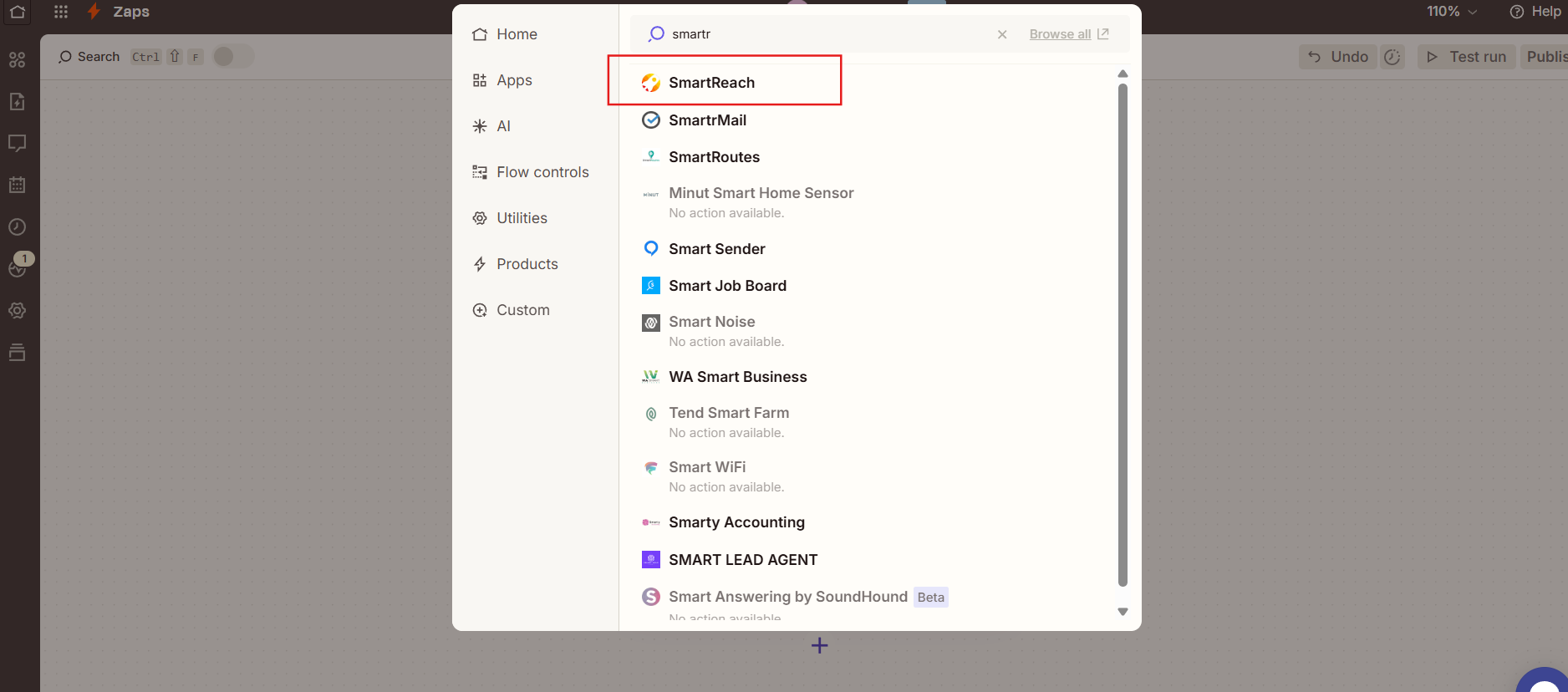
Step 6: Map Data Fields
- Map fields from Google Sheets to SmartReach:
- Click the plus icon for fields like Email, First Name, and Last Name.
- Select the corresponding data from the dropdown list.
- Review the mappings to ensure accuracy.
Step 7: Test the Action
- Run a test of the action step (this may take a few seconds).
- Verify the test data processes correctly.
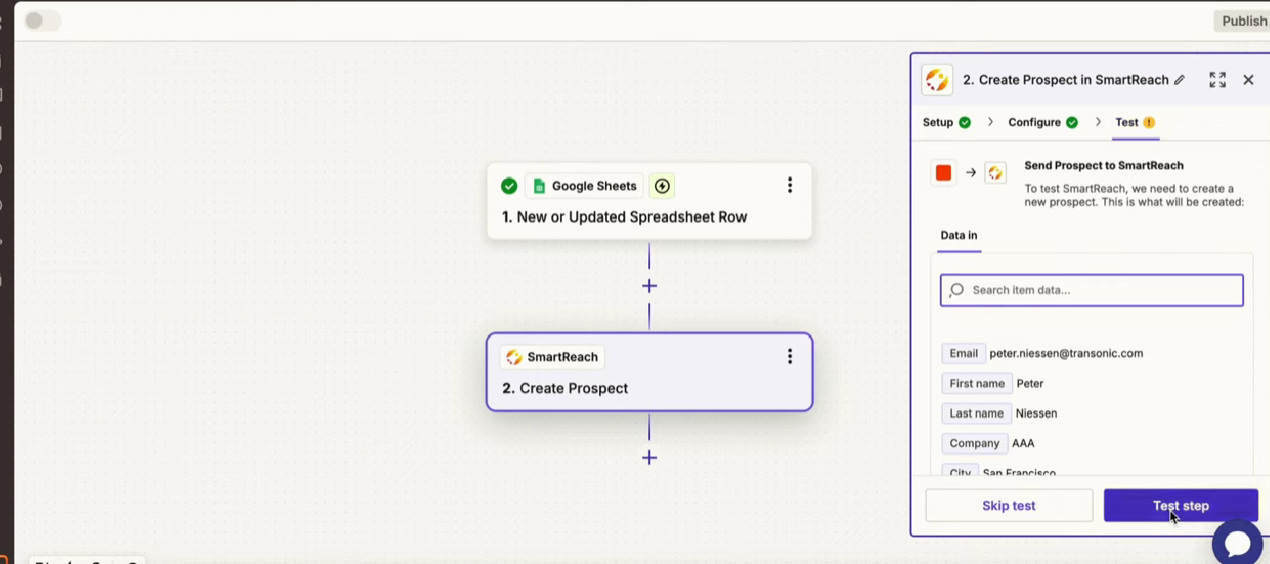
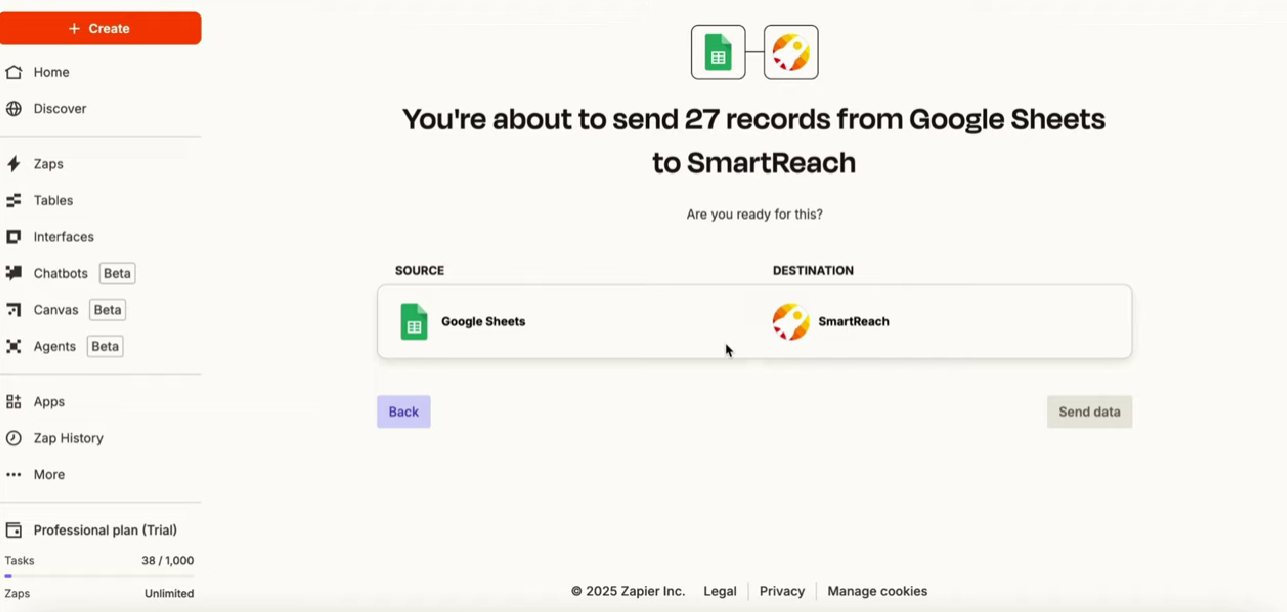
Step 8: Publish and Transfer Data (Optional)
- Publish the Zap to activate it.
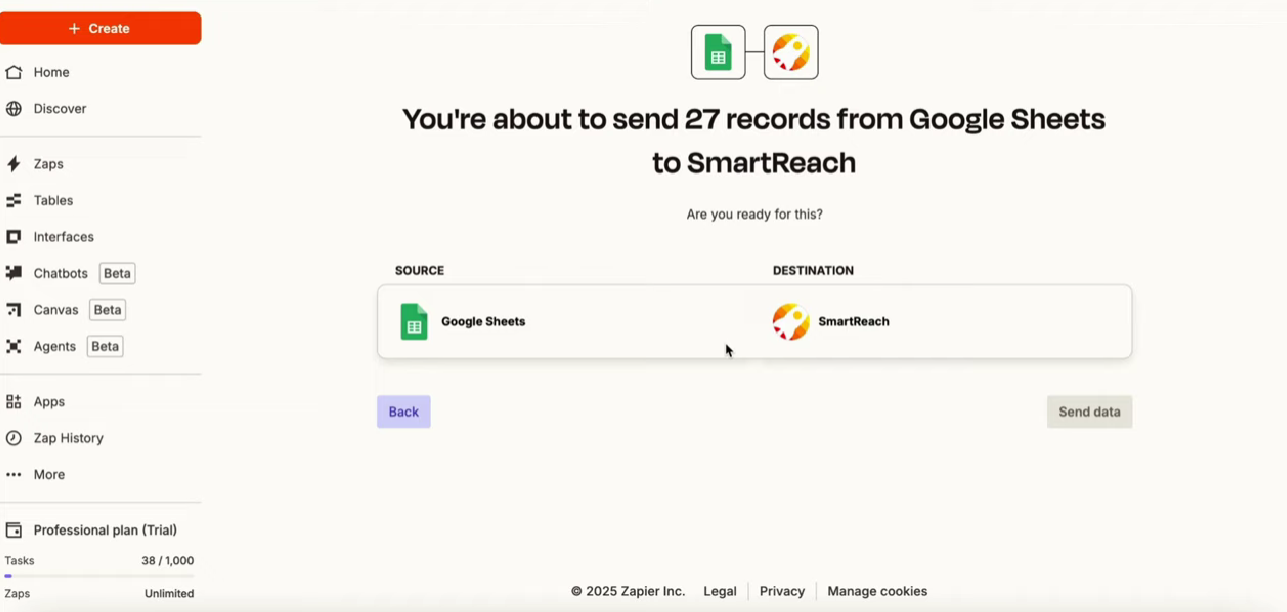
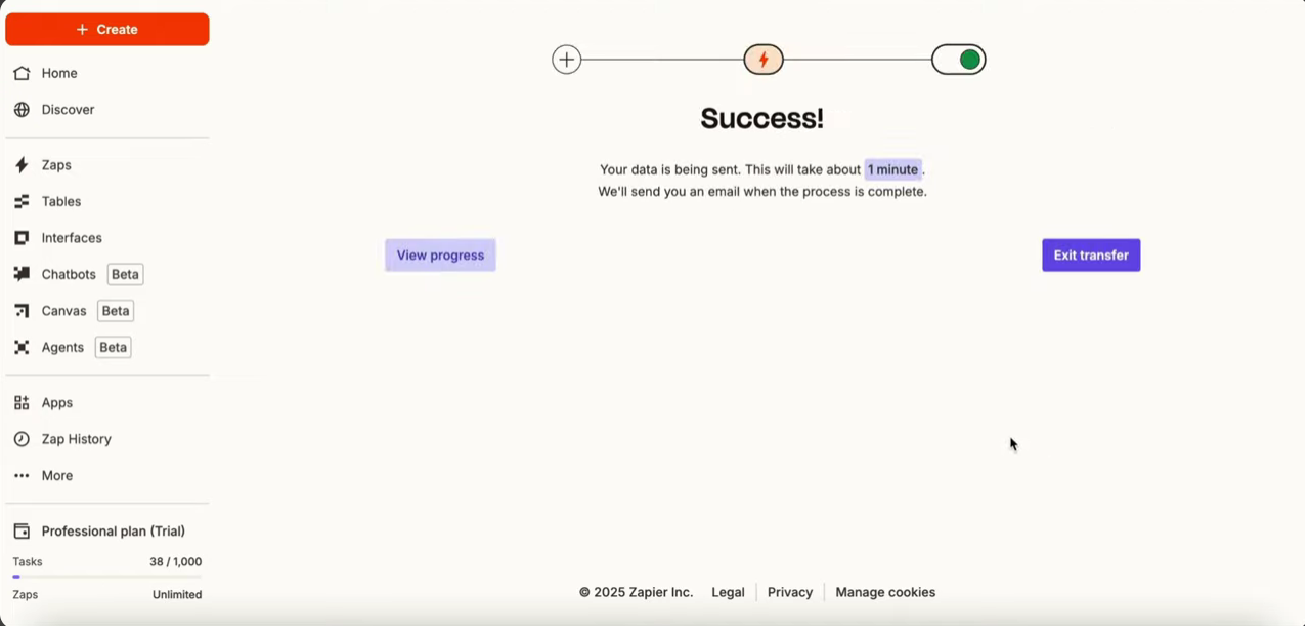
- For existing data, select Transfer Data in Zapier.
- Wait for data to load, check the boxes for contacts to transfer, and send to SmartReach.
- Expect an email notification when the transfer completes (may take a few minutes).
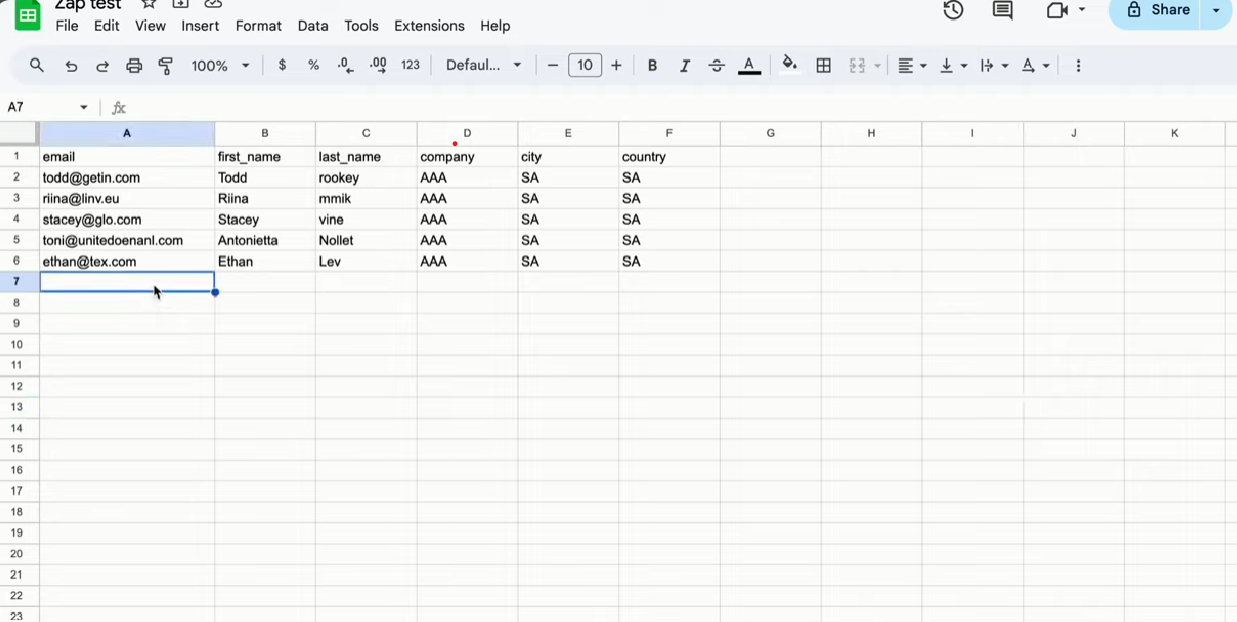
- Add new rows in Google Sheets to test real-time updates in SmartReach.
Troubleshooting Note: If the Zap doesn't trigger, check API key validity, Google account permissions, or field mappings. Test individual steps in Zapier and ensure the trigger column is correctly set. For delays, note that updates may take a few minutes to reflect.
Conclusion
This Zapier integration streamlines prospect management by automating data flow from Google Sheets to SmartReach.io, allowing you to focus on outreach rather than manual entry. Customize triggers and fields as needed for your workflows. For advanced setups or issues, check our Zapier docs or join the Slack community for support.
Updated about 2 months ago