
Integrate Monday.com using Zapier
Connect Monday.com with your favorite apps using Zapier to automate workflows
Overview
This integration allows you to connect Monday.com's project management boards with SmartReach.io's outreach platform via Zapier. Automate tasks like syncing new leads from Monday.com to SmartReach campaigns or updating Monday.com boards based on SmartReach events (e.g., email replies). This eliminates manual data entry, ensures real-time updates, and lets your team focus on closing deals. No coding skills are required, and it supports custom workflows with thousands of Zapier-connected apps.
View the video below for a brief overview.
Step-by-Step Tutorial
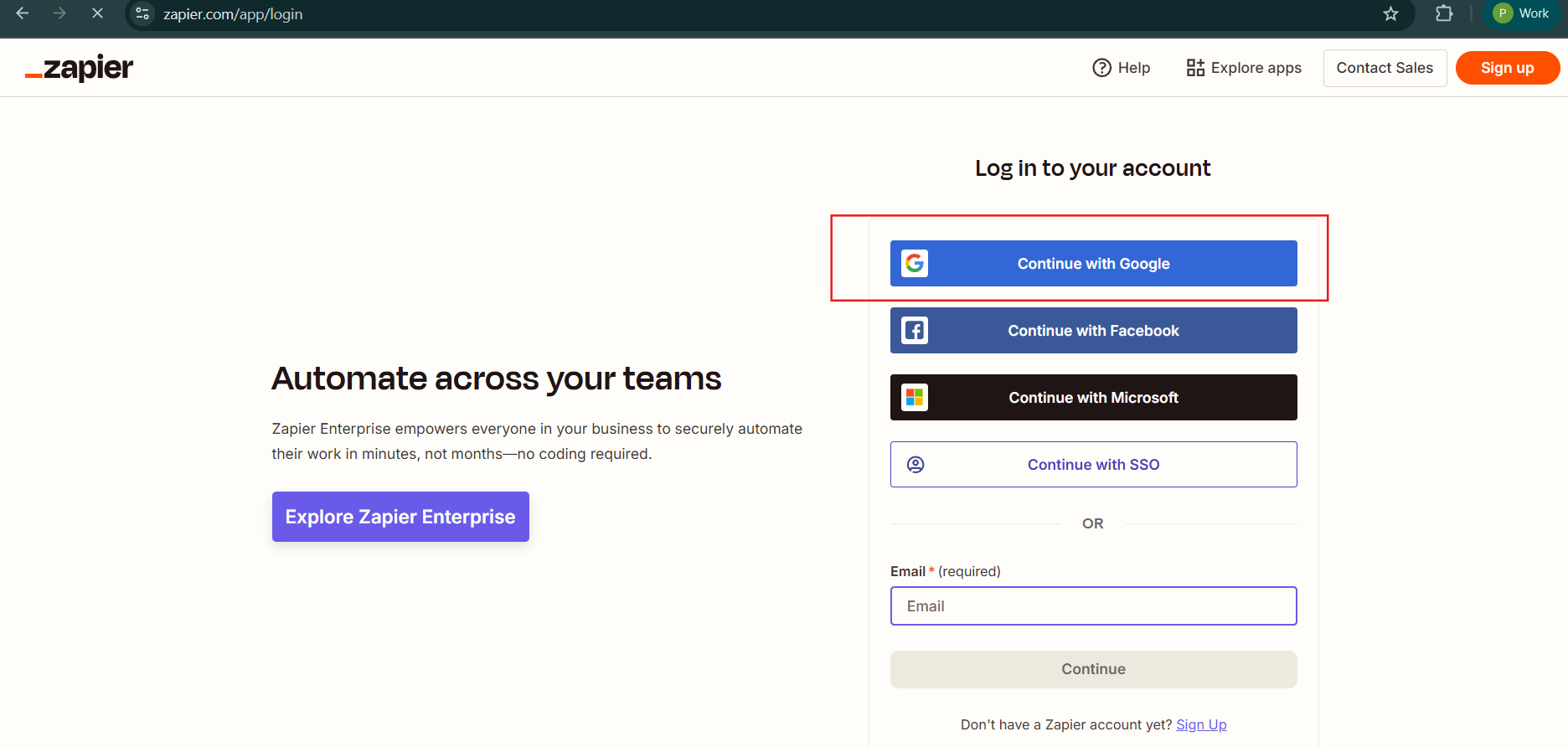
Step 1: Log in to Zapier
- Navigate to Zapier.com and log in to your account.
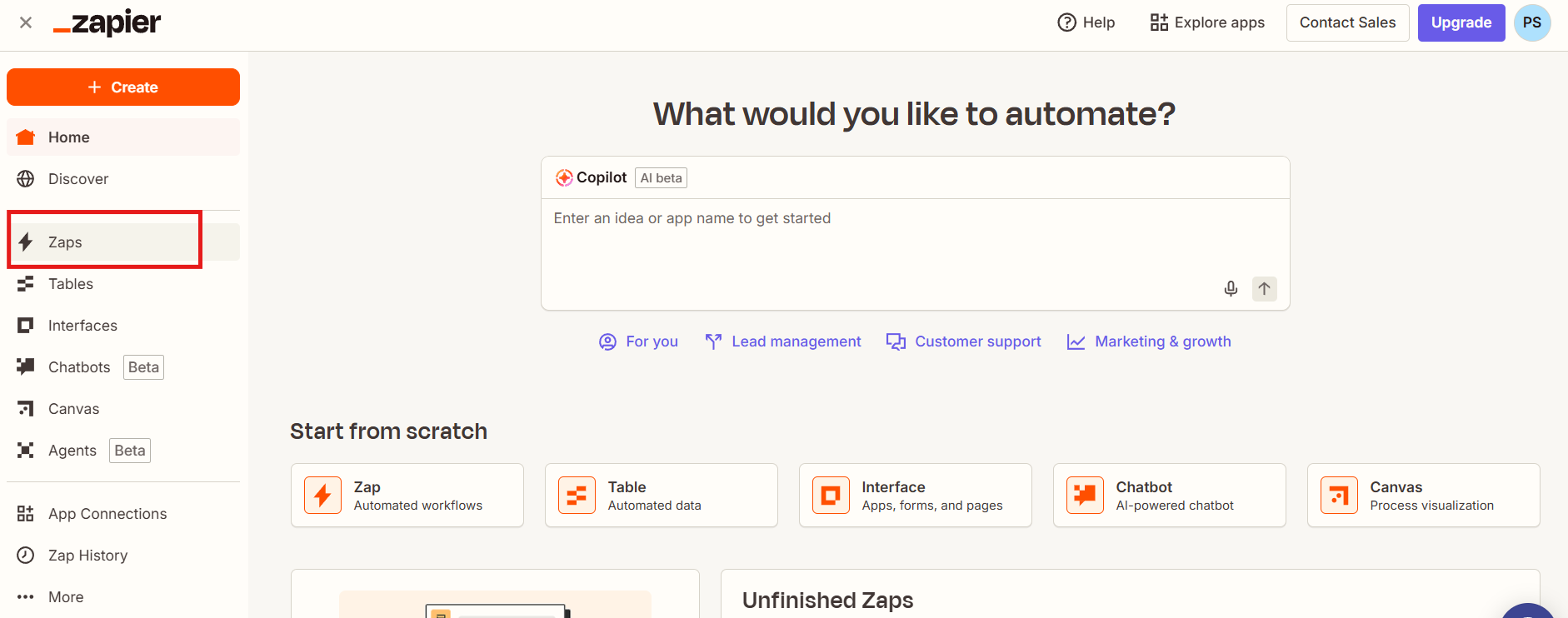
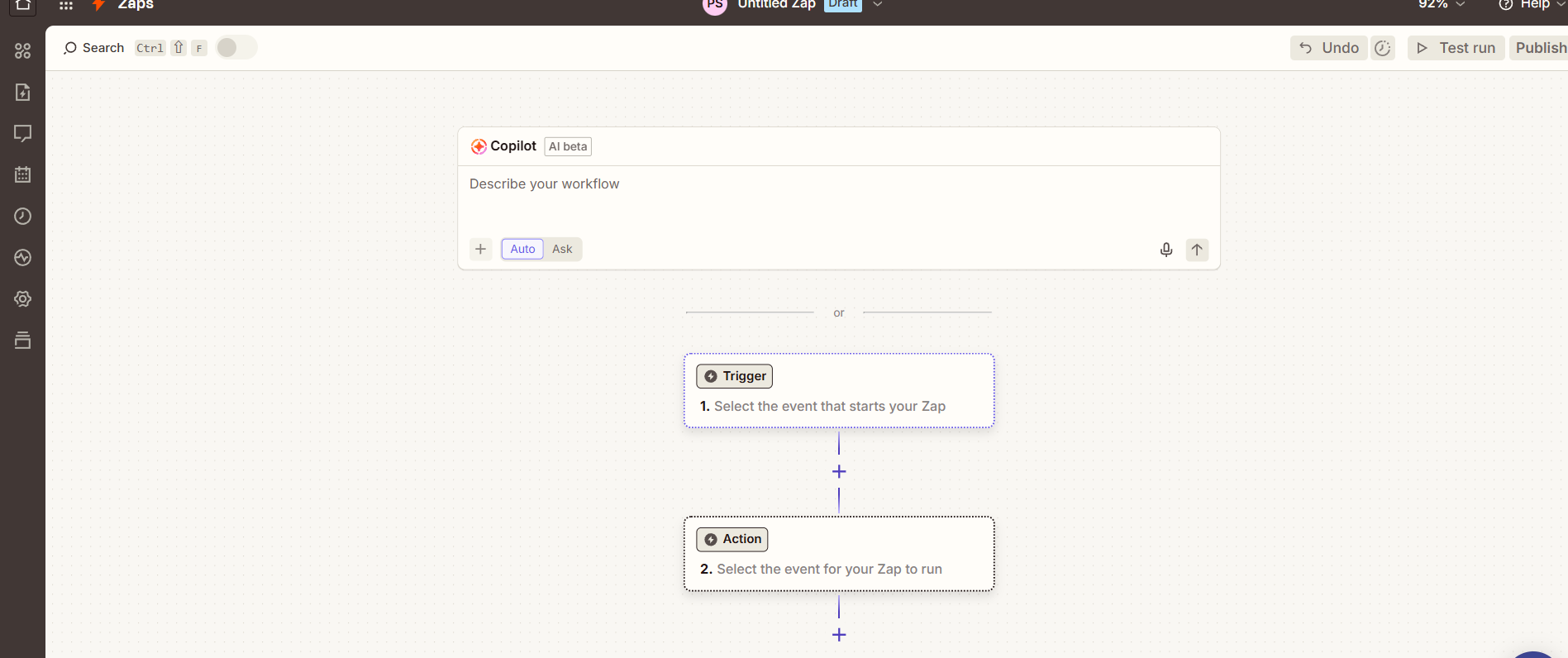
- Click on Create Zap to begin building your automation.
Step 2: Add a Trigger from SmartReach
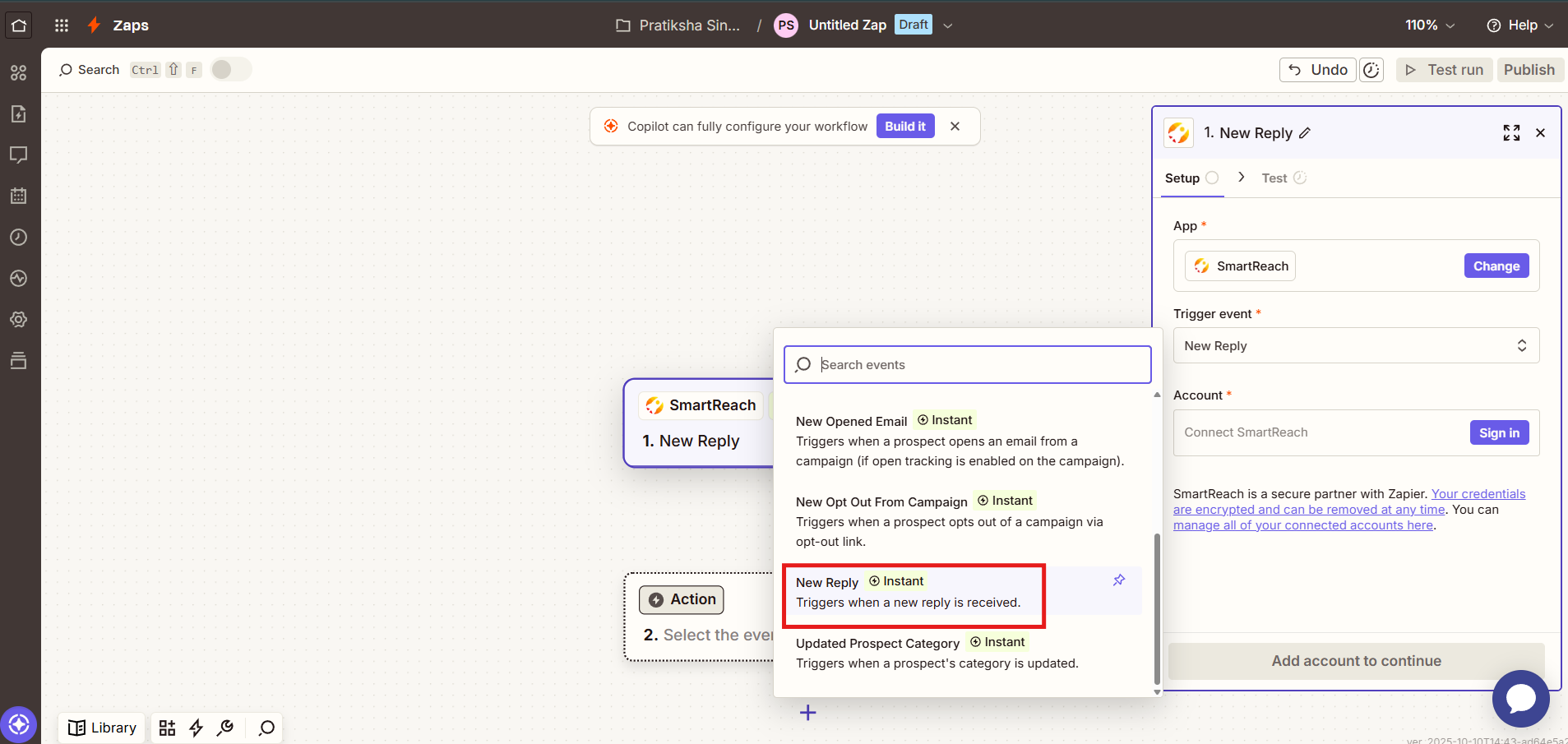
- Search for and select SmartReach as the trigger app.
- Choose a trigger event, such as "New Reply" (for when a prospect replies to a campaign email).
- This will automatically detect replies in SmartReach and prepare to send data to Monday.com
Step 3: Connect SmartReach to Zapier
- Log in to your SmartReach dashboard.
- Go to Settings > Integrations > Zapier
- Copy your API key.
- Paste the API key into Zapier to authenticate and connect the accounts.

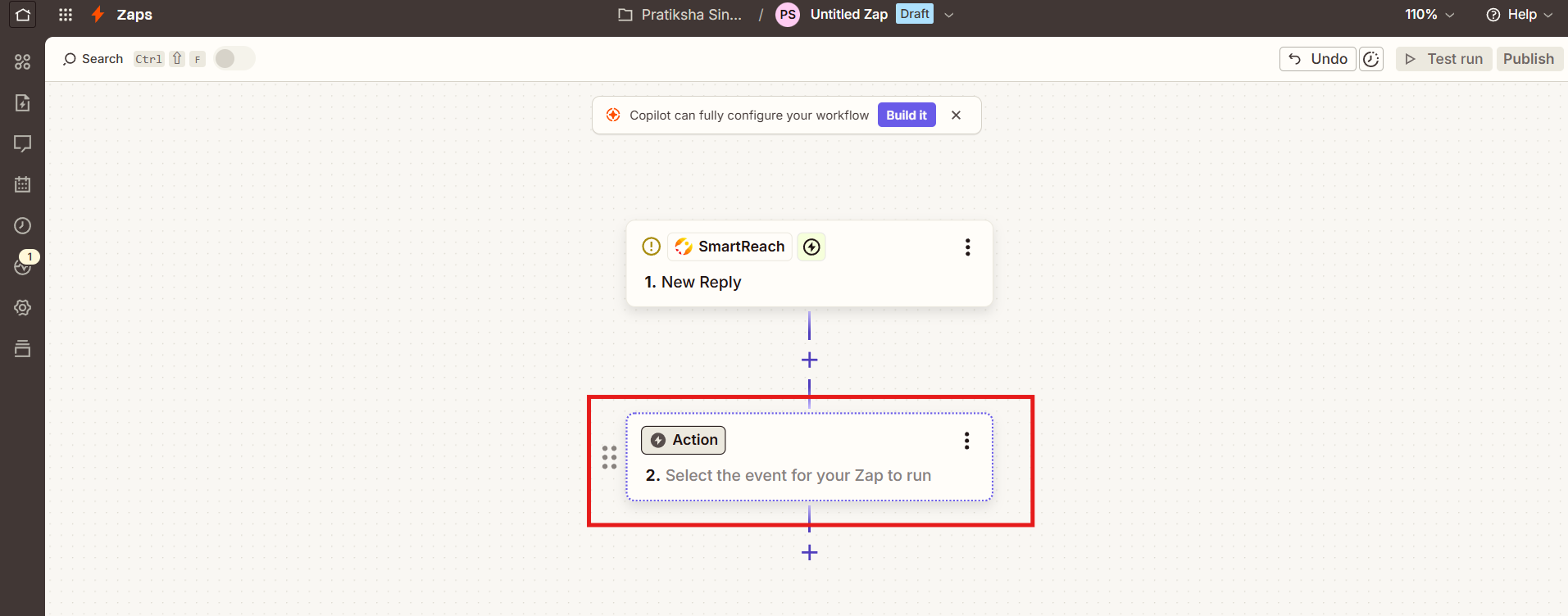
Step 4: Configure the Action in Monday.com
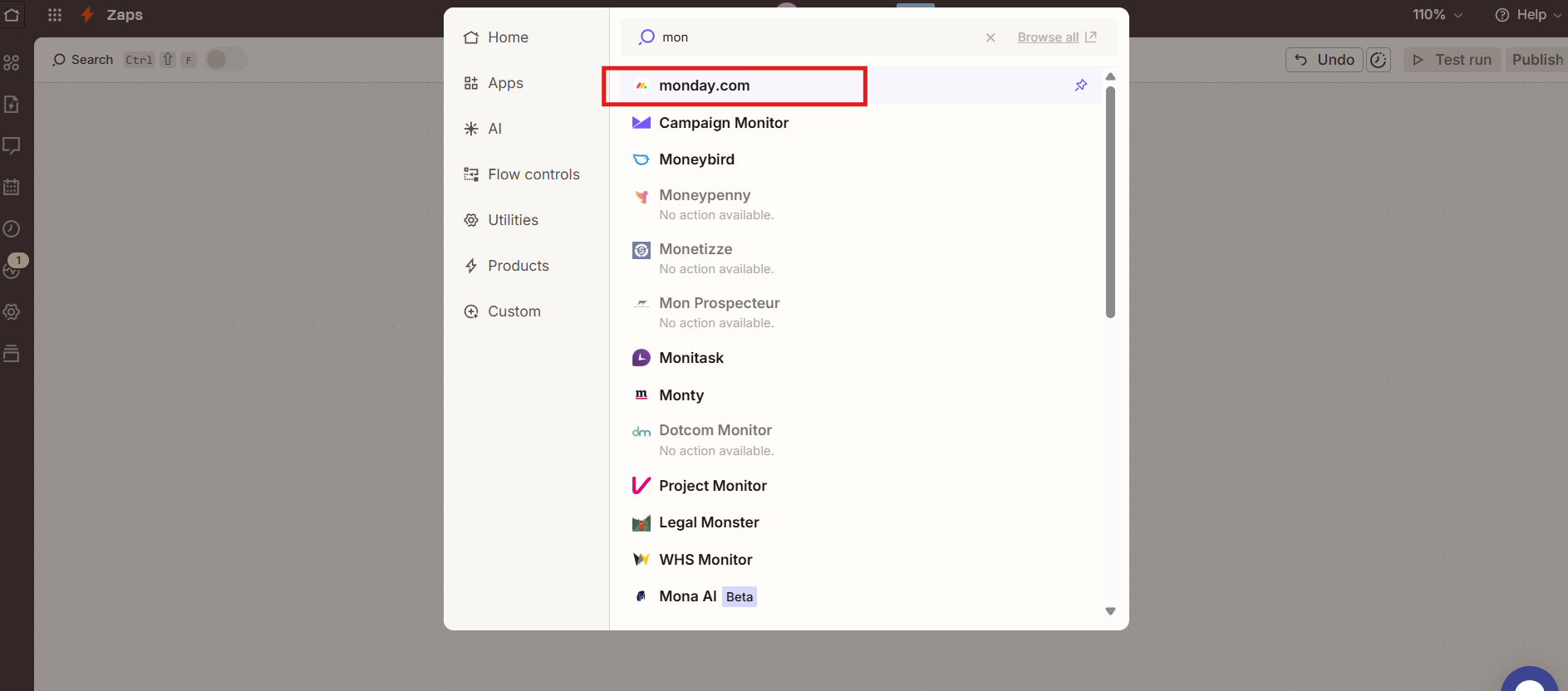
- Add an action module after the trigger and search for Monday.com.
- Select an action like "Create Item in Board" or "Update Column Values" to add or update prospects in a board (e.g., add replying prospects to a specific column).
Step 5: Connect Monday.com to Zapier
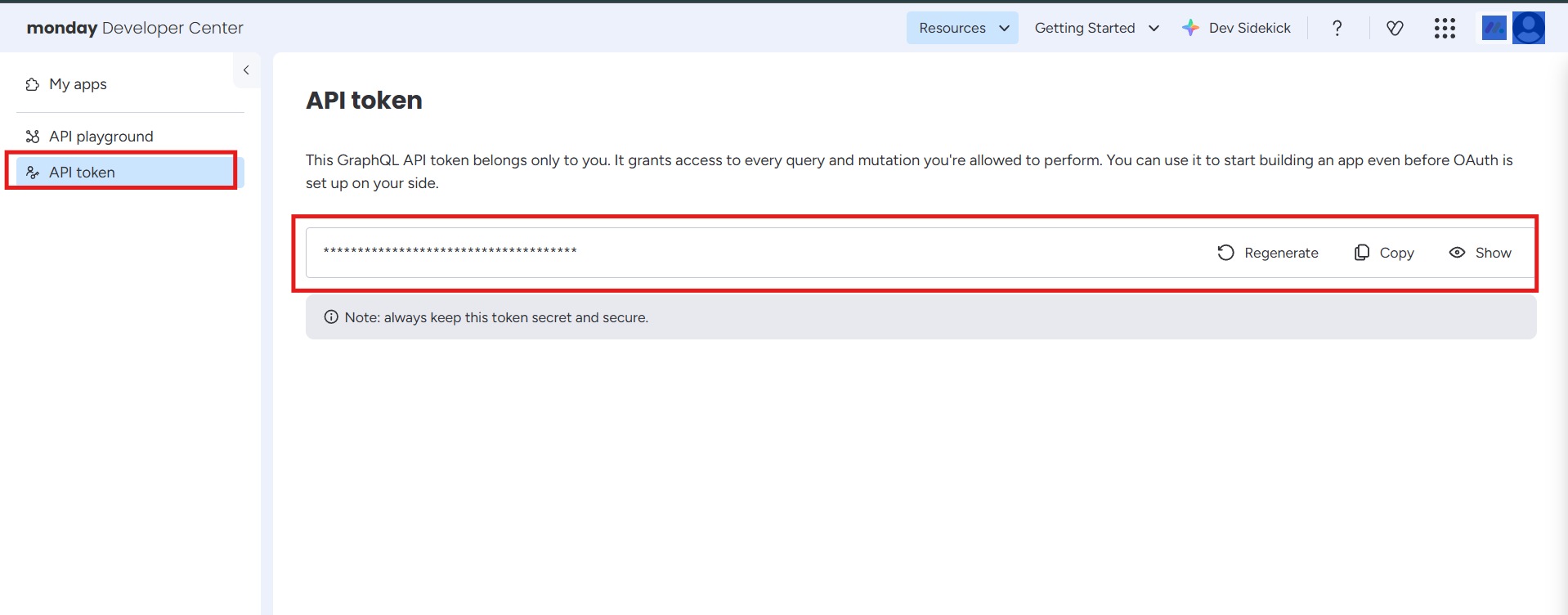
- In Monday.com, click your profile photo in the top right.
- Go to Developers > My Access Token.
- Copy the API key.
- Paste it into Zapier to complete the connection.
Step 6: Select Board and Column Details
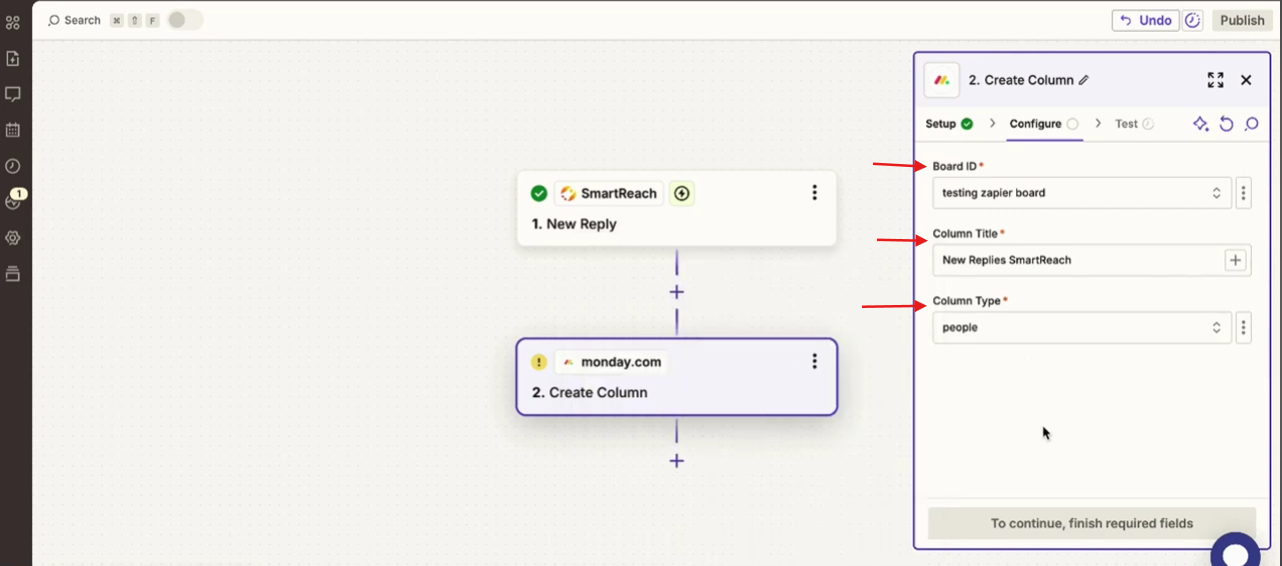
- Choose the relevant board ID name from your Monday.com workspace.
- Specify the column title and column type (e.g., text, status) where the data will be updated.
Step 7: Map Data Fields
- Map fields from SmartReach to Monday.com, such as:
- Prospect's email or name.
- Reply details or status updates.
- Use Zapier's mapping tools to match the data accurately.
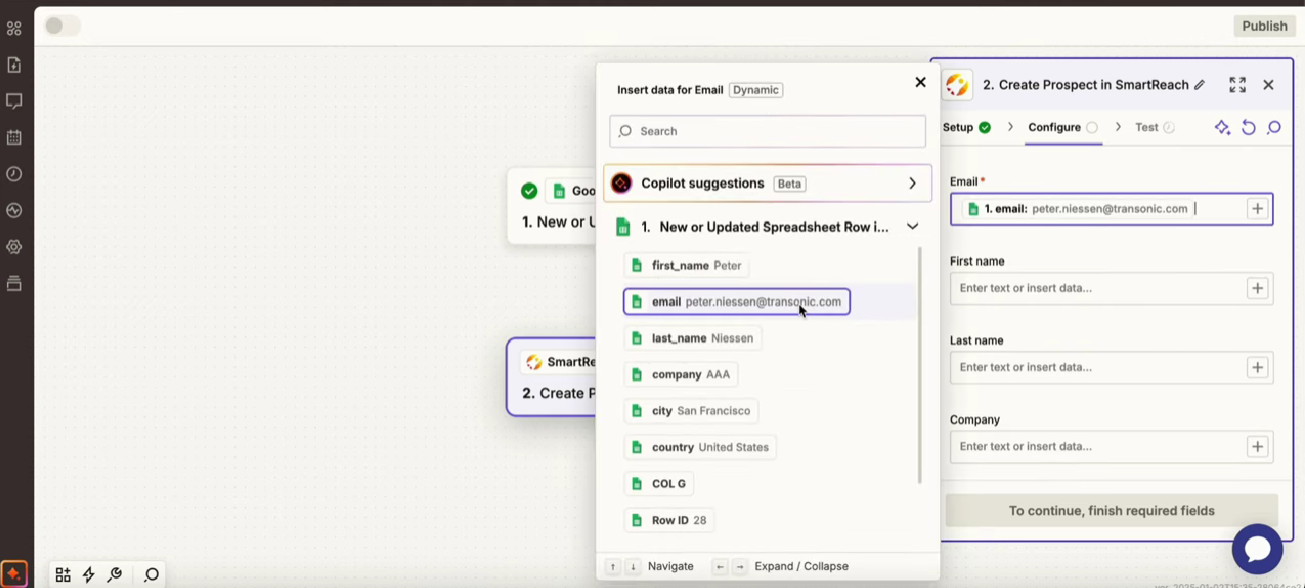
Step 8: Test and Publish the Zap
- Click Continue and run a test.
- Send a test reply in SmartReach (from a campaign) and verify it updates in Monday.com.
- Note: Only campaign replies are tracked, not general mailbox emails.
- Once successful, publish the Zap and set it to run automatically.
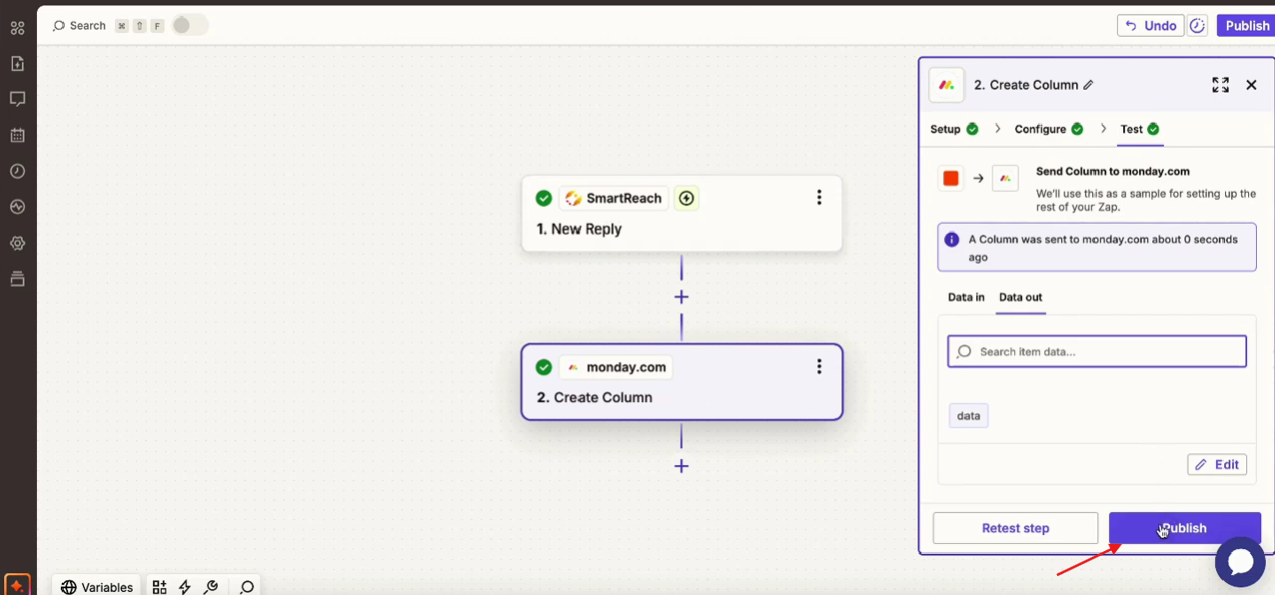
Troubleshooting Note: If the Zap fails, test individual steps in Zapier. Check API keys for accuracy, ensure permissions are granted, and confirm the trigger event matches your workflow. Retry connections if needed.
Conclusion
With this Zapier integration, your Monday.com boards and SmartReach campaigns will work seamlessly together, automating lead flows and status updates for efficient sales processes. Customize as needed for your team's needs, and explore additional triggers/actions for advanced setups. For more help, refer to our full Zapier guide or join the Slack community.
Updated about 2 months ago