
Multichannel Drip Campaigns
Learn how to create multichannel drip campaigns in SmartReach. Automate email, LinkedIn, and call workflows based on prospect actions.
What are Multichannel Drip Campaigns?
Multichannel Drips in SmartReach.io are advanced sales engagement workflows that enable seamless transitions between communication channels such as email, LinkedIn, and calls based on prospect actions or data availability. A drip campaign is a way to send messages to people step by step, based on what they do.
For example, if someone opens your email, you can send them another email or assign a task like connecting on LinkedIn. If they don’t respond, you can try something else, like a reminder. It’s all about following up in a planned way, depending on their actions, to keep them interested and engaged
Lets look at a quick video on how it works
How It Works
Multichannel Drips use conditional workflows to adapt outreach based on a prospect’s behavior or available data.
Action-Based Transitions: Prospects are automatically moved to the next channel or step in the sequence based on actions they complete (e.g., opened an email, replied) or don’t complete (e.g., no response after a set time).
Data Availability Checks: The system checks for critical contact information, such as a LinkedIn URL or phone number, to determine the next best channel for engagement.
Step by step guide to set up your drip campaign
Step 1
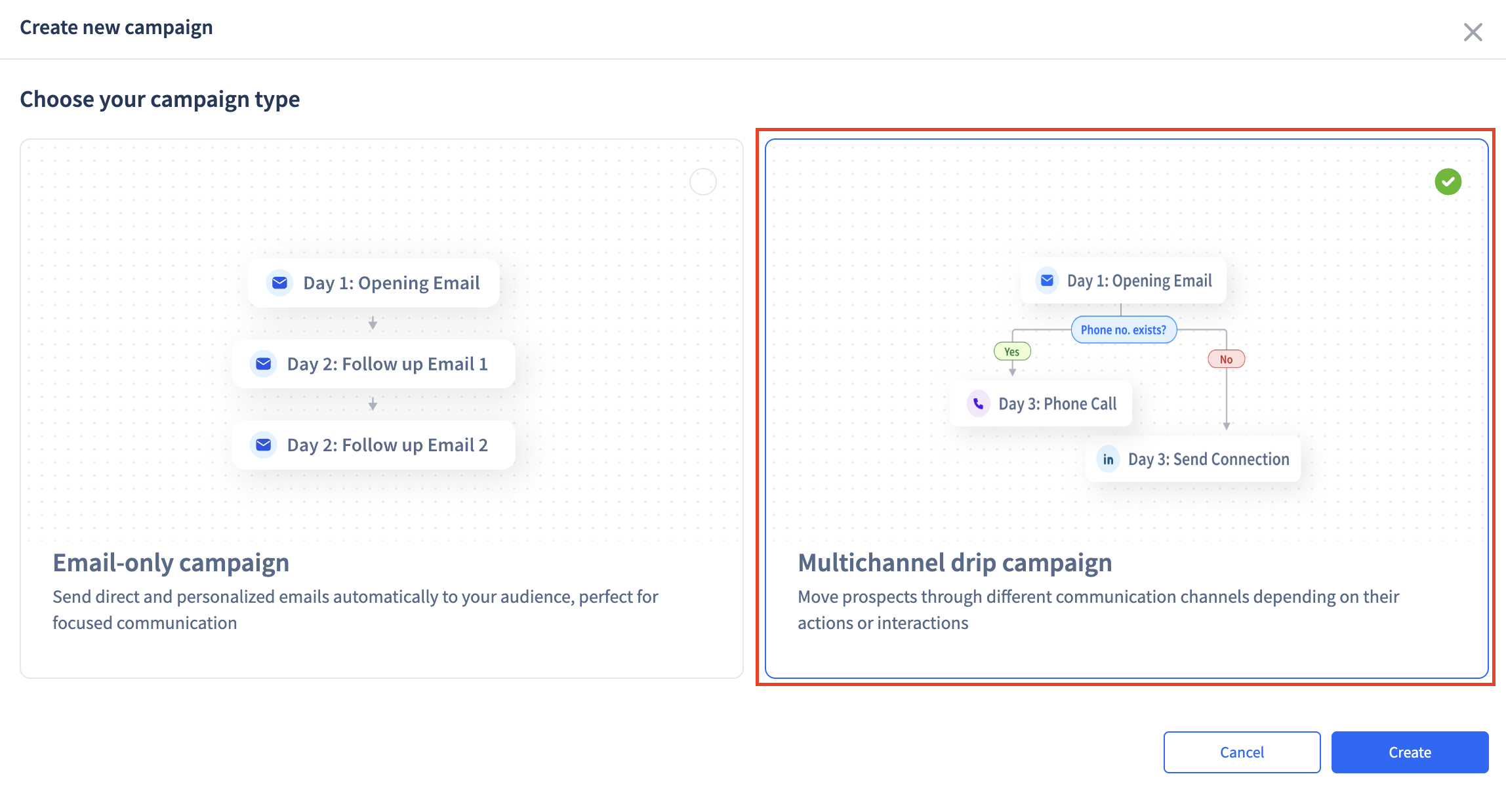
Start by clicking on the “Create Campaign” button to initiate the campaign setup process.
Select Multichannel Drip Campaign Click on Create
Step 2
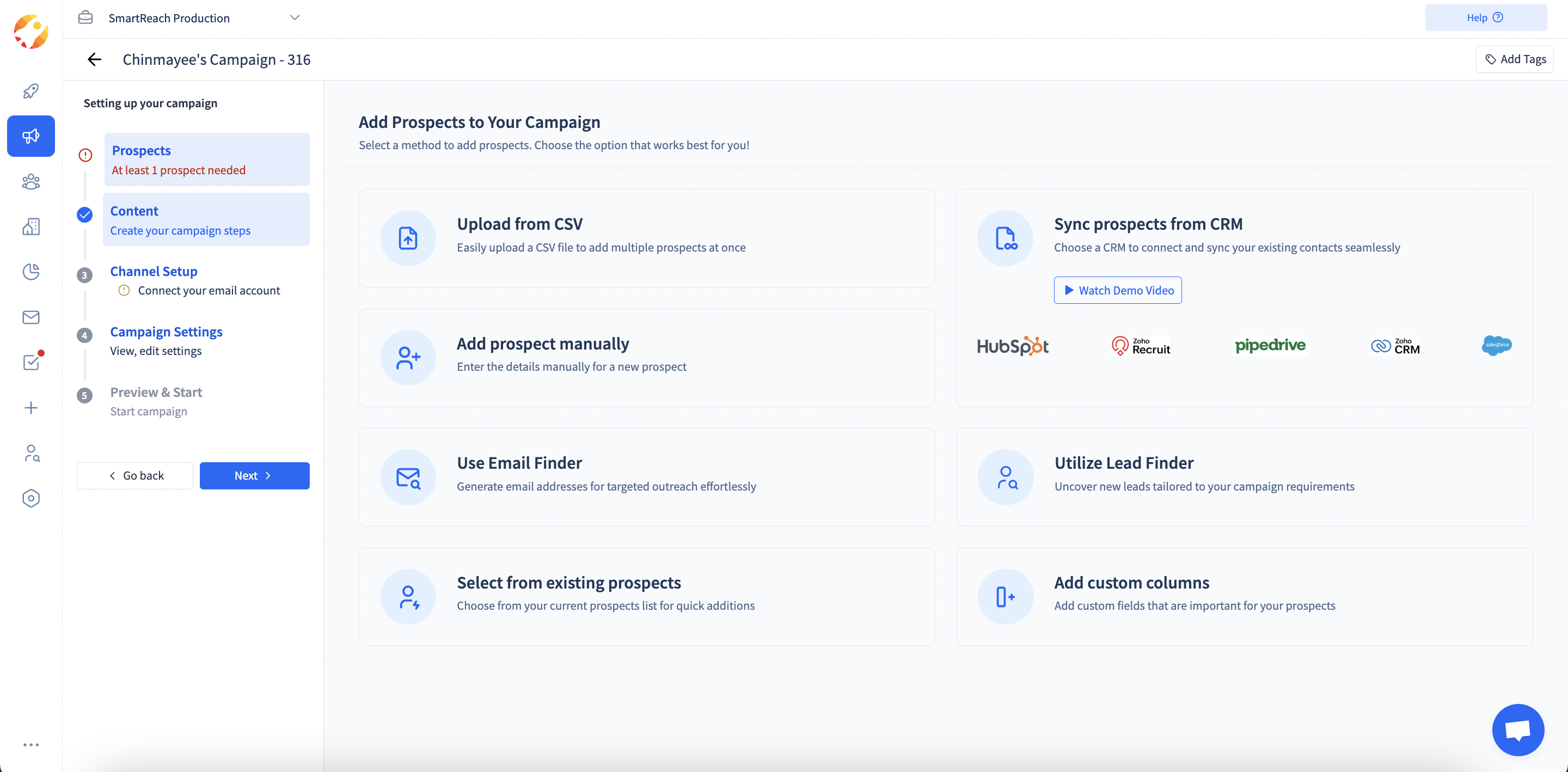
On the first step to set up your campaign it will ask you to add prospects to your campaign, on more information about adding prospects Click here` Once you add the prospects you can skip to the content section to add your first workflow)
Step 3
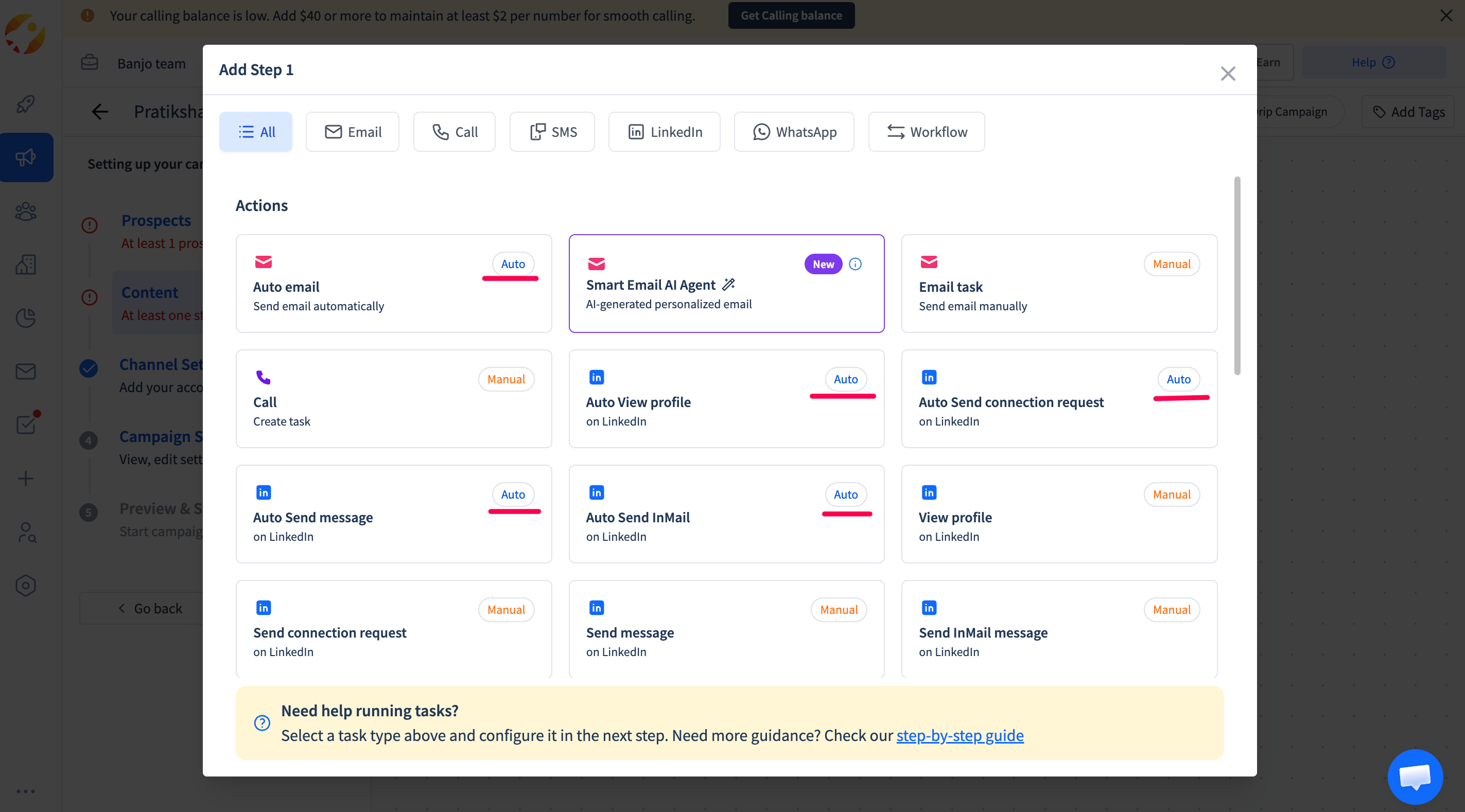
Add Your First Step for your drip workflow. (Email, Call, LinkedIn etc.) You can set up any of the following steps
Automatic Steps
Auto email – Send email automatically
Move prospects to another campaign – Automatically shift prospects to a different campaign
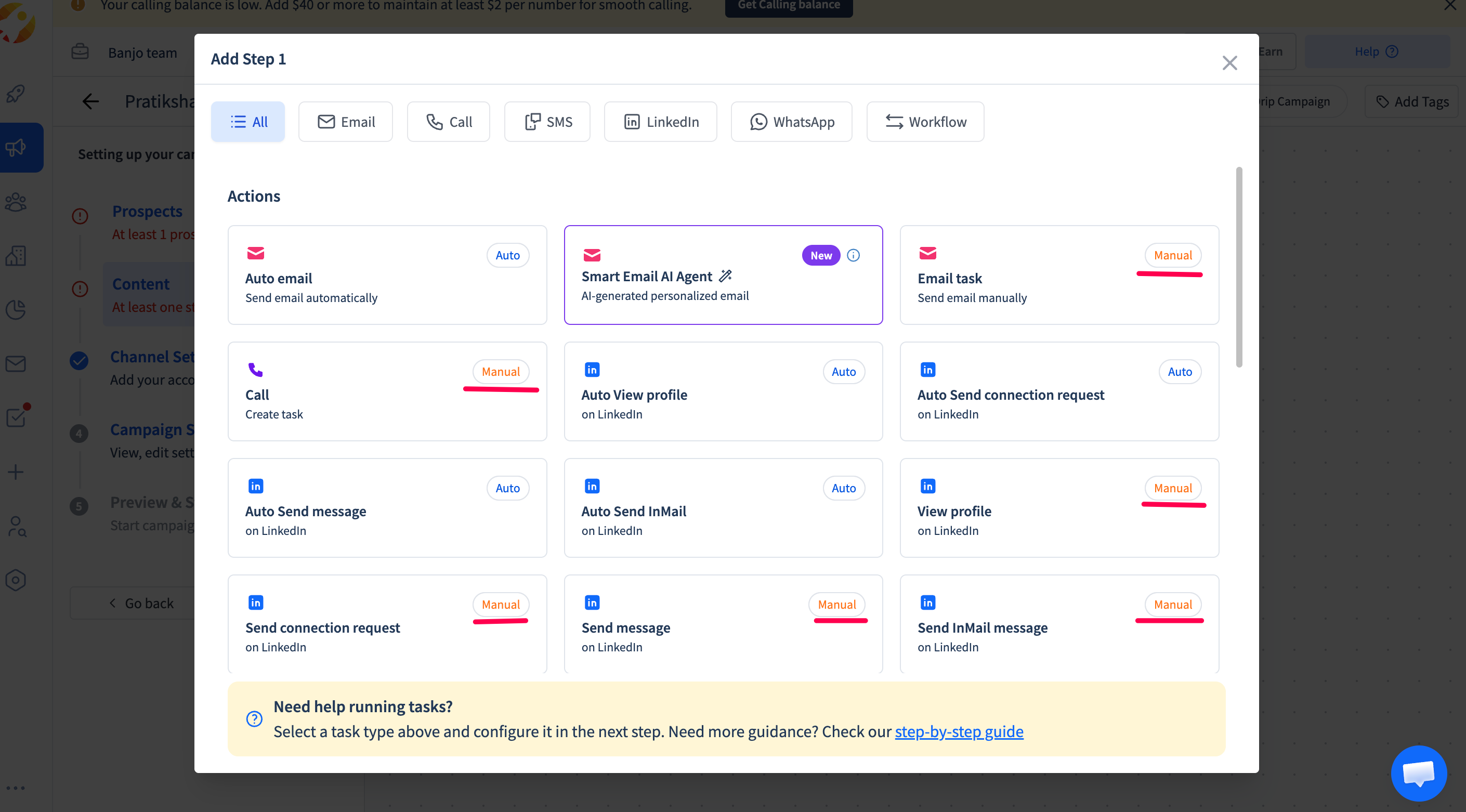
Manual Tasks
(These require user action or manual intervention or is a semi automated approach)
Email task – Send email manually
Call – Create a call task
Visit profile (LinkedIn) – View the profile through task manager
Send invitation (LinkedIn) – Send connection request by executing the task
Direct message (LinkedIn) – Send personalised message in semi automated way on extension
Send InMail message (LinkedIn) – Send InMail manually
Manual task – Create a custom task according to your needs
Send message (WhatsApp) – Send a WhatsApp message
Step 4
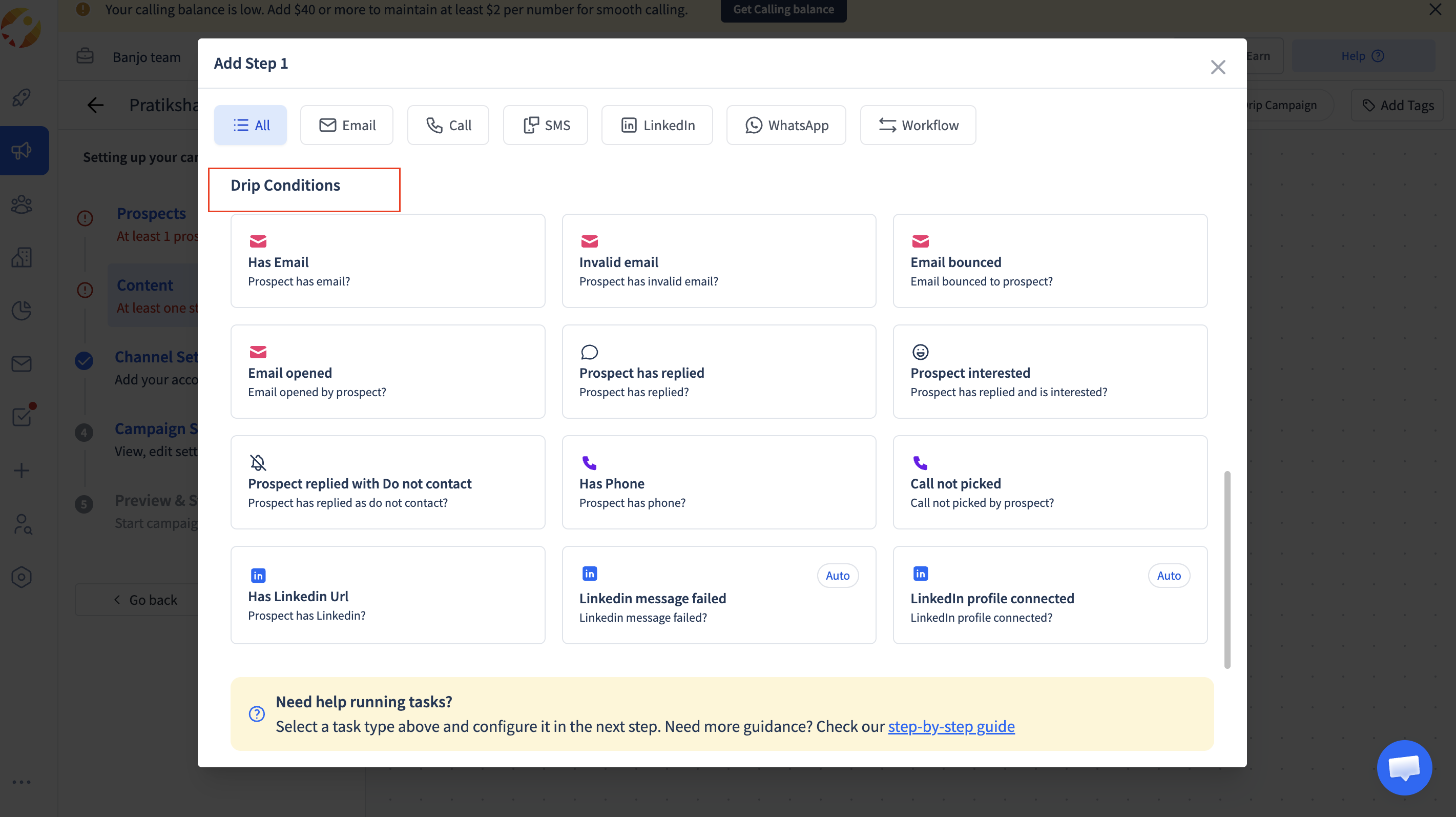
Select a Drip Condition:
Select the second stage in the workflow according to the drip conditions or set up a task for other channels as required. There are 12 drip conditions:
1. Has Email
2. Invalid email
3. Email bounced
4. Email opened
5. Prospect has replied
6. Prospect interested
7. Prospect replied with Do not contact
8. Has Phone
9. Call not picked
10. Has Linkedin Url
11. Linkedin message failed (Auto)
12. LinkedIn profile connected (Auto)
Step 5
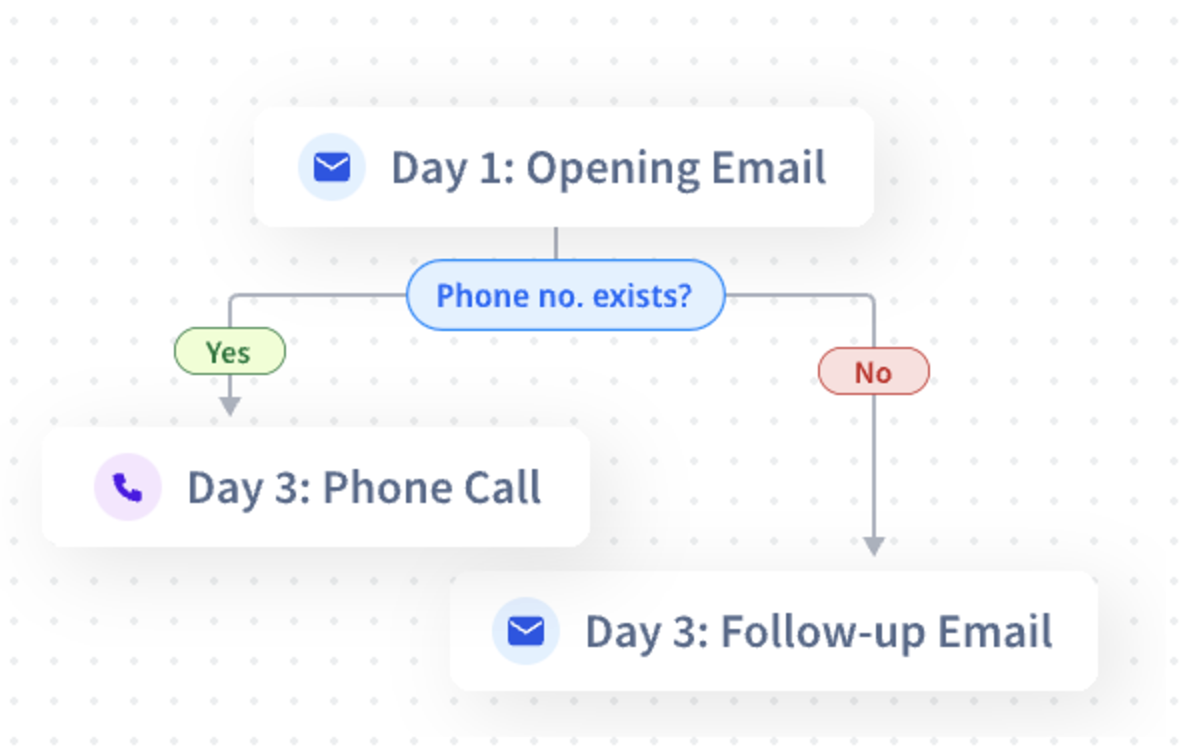
Now for example You send an email (Day 1). Depending on what the prospect does (or doesn’t do), you pick the next move. Click on the Plus Icon (+).Every condition has two options: “Yes” or “No”. Based on this, you decide what happens next in your workflow Each drip condition leads to two possible paths—
Yes (condition is met) or No (condition is not met)—to decide the next step in the workflow.
Design the Next Step Based on the Selection:
Depending on whether you select "Yes" or "No," design the next steps in your workflow.
For example, if the prospect opens the email (Yes), you might follow up with a call. If they don’t open the email (No), you could resend it or try reaching out on LinkedIn.
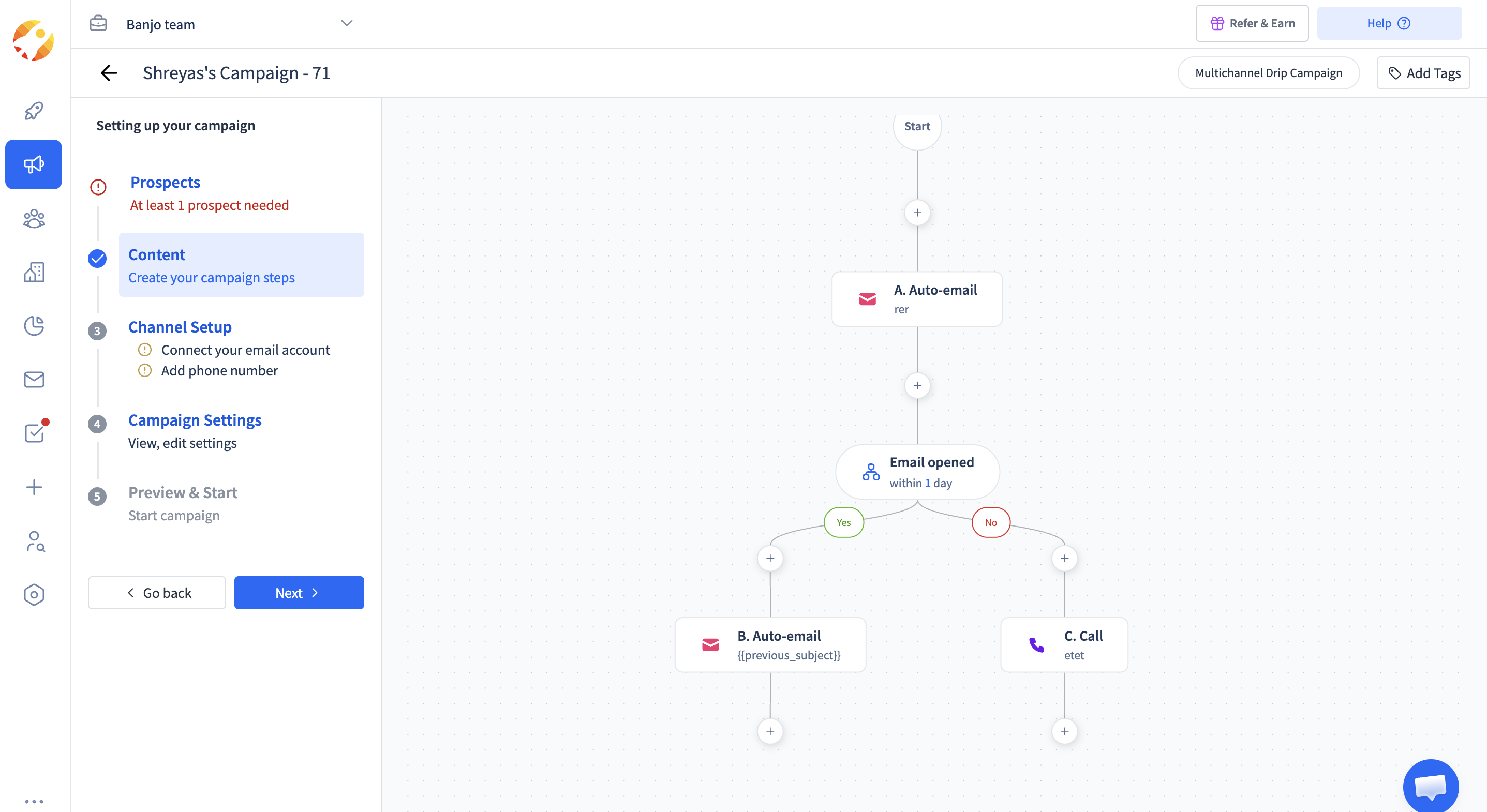
Add the Relevant Follow up Steps (e.g., Email, Call, etc.):
Step 6
Repeat the Process for Additional Steps:
Continue adding steps and conditions to further refine your campaign. For each new step, you can decide whether to branch the workflow based on further actions or conditions.
These conditions could vary depending on the activity of the prospect. The current set of 12 conditions is as follows
| Condition | Meaning | Examples |
|---|---|---|
| Has Email | Prospect has email? | Yes: Start or continue the email steps. No: Move them to LinkedIn or phone outreach. |
| Invalid email | Prospect has invalid email? | Yes: Switch to LinkedIn or phone outreach. No: Continue with your email sequence. |
| Email bounced | Email bounced to prospect? | Yes: Switch to LinkedIn or phone outreach. No: Continue with your email sequence. |
| Email opened | Email opened by prospect? | If Yes: Send a follow-up email or call them. If No: Try reaching out via LinkedIn or call them. |
| Prospect has replied | Prospect has replied? | Yes: Analyze their reply. Hot lead? Interested? Disinterested? Adjust your workflow accordingly. |
| Prospect interested | Prospect has replied and is interested? | Yes: Add them to “hot leads” and follow up like a pro! |
| Prospect replied with Do not contact | Prospect has replied as do not contact? | Yes: Respect their choice and stop outreach. |
| Has Phone | Prospect has phone? | Yes: Call them up! No: Stick to emails or LinkedIn. |
| Call not picked | Call not picked by prospect? | Yes: Schedule a retry or try another channel like LinkedIn or WhatsApp, based on the disposition of the call. |
| Has Linkedin Url | Prospect has LinkedIn? | Yes: Send a personalized connection request or message via SmartReach. No: Move the prospect to phone outreach. |
| Linkedin message failed (Auto) | Linkedin message failed? | Yes: Try calling or WhatsApp. No: Continue the LinkedIn steps. |
| LinkedIn profile connected (Auto) | LinkedIn profile connected? | Yes: Send a LinkedIn message that builds on your earlier touch. No: View their profile again or continue on email. |
Real-Life Scenarios
Scenario 1: Follow-Up Based on Email Opens
Condition: Did they open the email?
Yes: Call them or schedule a follow-up task.
No: Try LinkedIn outreach instead.
Scenario 2: Using LinkedIn for Multichannel Workflows
Condition: Does the prospect have a LinkedIn profile?
Yes: Send a personalized connection request.
No: Schedule a calling task.
Scenario 3: Re-Engaging on Email Opens
Condition: Email opened?
Yes: Follow up with a meeting link or extra resources.
No: Use alternate channels.
Scenario 4: Handling Bounced Emails
Condition: Is the email invalid?
Yes: Switch to LinkedIn or calls.
No: Keep the email campaign rolling.
Scenario 5: When Prospects Reply
Condition: Did they reply?
Yes: If interested, mark them as a “hot lead.”
If disinterested, stop outreach politely. No: Nudge them on LinkedIn or call to keep the conversation alive.
Key Benefits of Customization
1.Personal Touch: Make every message feel like it was written just for them.
2. Time Saver: Automate your steps and focus on the big wins.
3. Creative Freedom: Design workflows that feel less robotic and more you.
4. Get Creative with Workflows
With our drip campaigns, you can:
5. Mix up channels—email, LinkedIn, phone calls—to find what works best.
You can trigger personalized follow-ups based on actions (e.g., email clicks, replies) and experiment with sequences and conditions to keep your outreach fresh and effective.
Note: Once a workflow is created, you can tweak the steps i.e edit the content of the steps anytime but cannot add new conditions mid-campaign.
Updated 15 days ago