
Magic Email
Magic Email is an AI-powered feature in SmartReach that creates hyper-personalized cold email content for each prospect in your campaign. Instead of writing templates manually, it uses lead data combined with your company details, campaign goals, and prospect data to generate unique subject lines and email bodies at scale.
Use Magic Email when you want to:
- Send personalized cold emails without writing individual templates
- Put enriched prospect data (revenue, industry, job title) to work in your outreach
- Create natural language variation across emails to help with deliverability
- Run multiple campaigns or ICPs with consistent personalization
- Keep messaging aligned across intro and follow-up steps in a multichannel outreach sequence
Note: Magic Email does not support manual merge tags like {{first_name}} or {{company}}. The AI automatically pulls in available prospect data (including company name, job title, country, and other fields) to personalize each email. The richer your prospect data, the more targeted your emails will be.
Plan availability
Magic Email is available on the Sales Engagement Pro and Sales Engagement Scale plans of SmartReach. It is also included during the free trial, so you can test it before committing to a plan.
How it works
Setup Phase
During campaign creation, you configure Magic Email through two layers of inputs. The more detail you provide in each input, the more specific and relevant your generated emails will be. Leaving optional fields blank won't stop email generation, but filling them in gives the AI better context to work with.
- Campaign-level setup (done once): Company details, campaign goal, pain points, value propositions, your offer, and copywriting rules.
- Step-level context (set per Magic Email step): Defines the message intent and desired prospect action for each email step (e.g., introduction vs. follow-up).
Execution phase
Once setup is complete, emails are generated and sent through one of two modes:
- Copilot mode: Emails go to the Approvals queue (accessed via Task Manager in SmartReach) where you review, edit, and approve them before sending. Best for testing or sensitive campaigns.
- Autopilot mode: Emails are generated and sent automatically after prospect email validation. No manual review needed. Best for scaling outreach.
Continuous learning
As you edit emails in Copilot mode, Magic Email learns your tone, structure, and phrasing. Over time, the generated emails start matching how you would write. Once you're happy with the output, you can switch to Autopilot mode for faster execution.
Step-by-step: setting up Magic Email
-
Start a new campaign
- Go to Campaigns from the left sidebar.
- Click Create Campaign.
- Select Multichannel Drip Campaign and click Create.
-
Add a Magic Email step
- Click Add Step.
- Select Magic Email (AI-generated) from the Email tab under Actions.
This launches the Magic Email setup flow, which has two sections: Campaign Setup and Step Setup.
Note: If you see an upgrade prompt when selecting Magic Email, it means the feature is not available on your current plan. You'll need to upgrade to the Pro or Scale plan to access it.
Campaign-level setup (required once)
These inputs apply to the entire campaign. You only need to fill them in once.
3. Enter company details
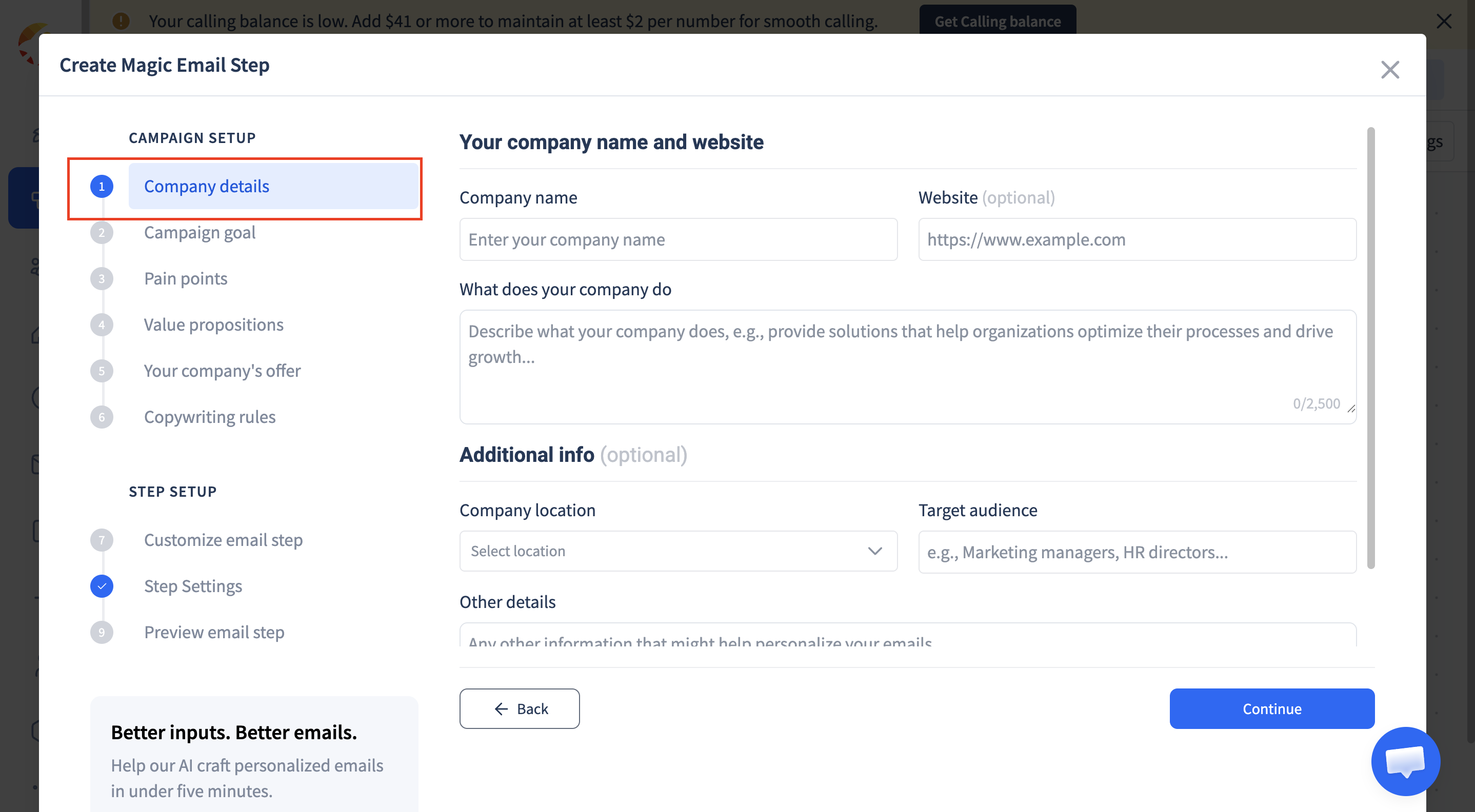
Provide information about your company so the AI understands your offering.
Required fields:
- Company Name
- What does your company do?
Optional fields:
- Company website
- Company location
- Target audience
- Other company context
While these optional fields aren't mandatory, filling them in helps the AI generate more specific and relevant emails. For example, adding your target audience and company location lets the AI tailor messaging to the right persona and region. The emails will still be generated if you skip these, but the output will be more generic.
4. Define your campaign goal
Based on your company details, SmartReach auto-generates the most relevant campaign goals for your industry — like booking meetings or generating interest.
You can select one of the suggested goals, or add your own custom goal by clicking New campaign goal and entering a title and description. The custom option appears below the suggested ones.
5. Select prospect pain points
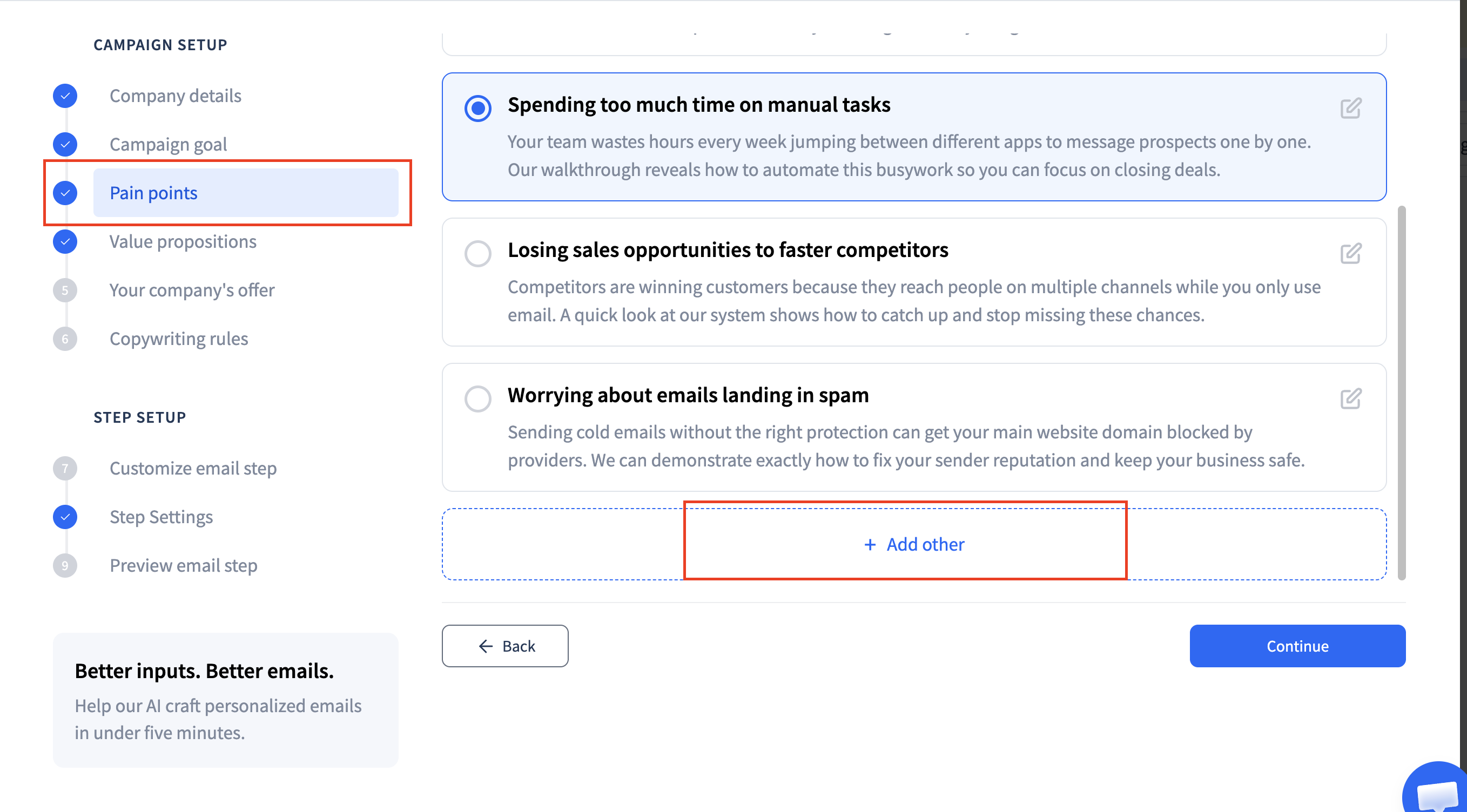
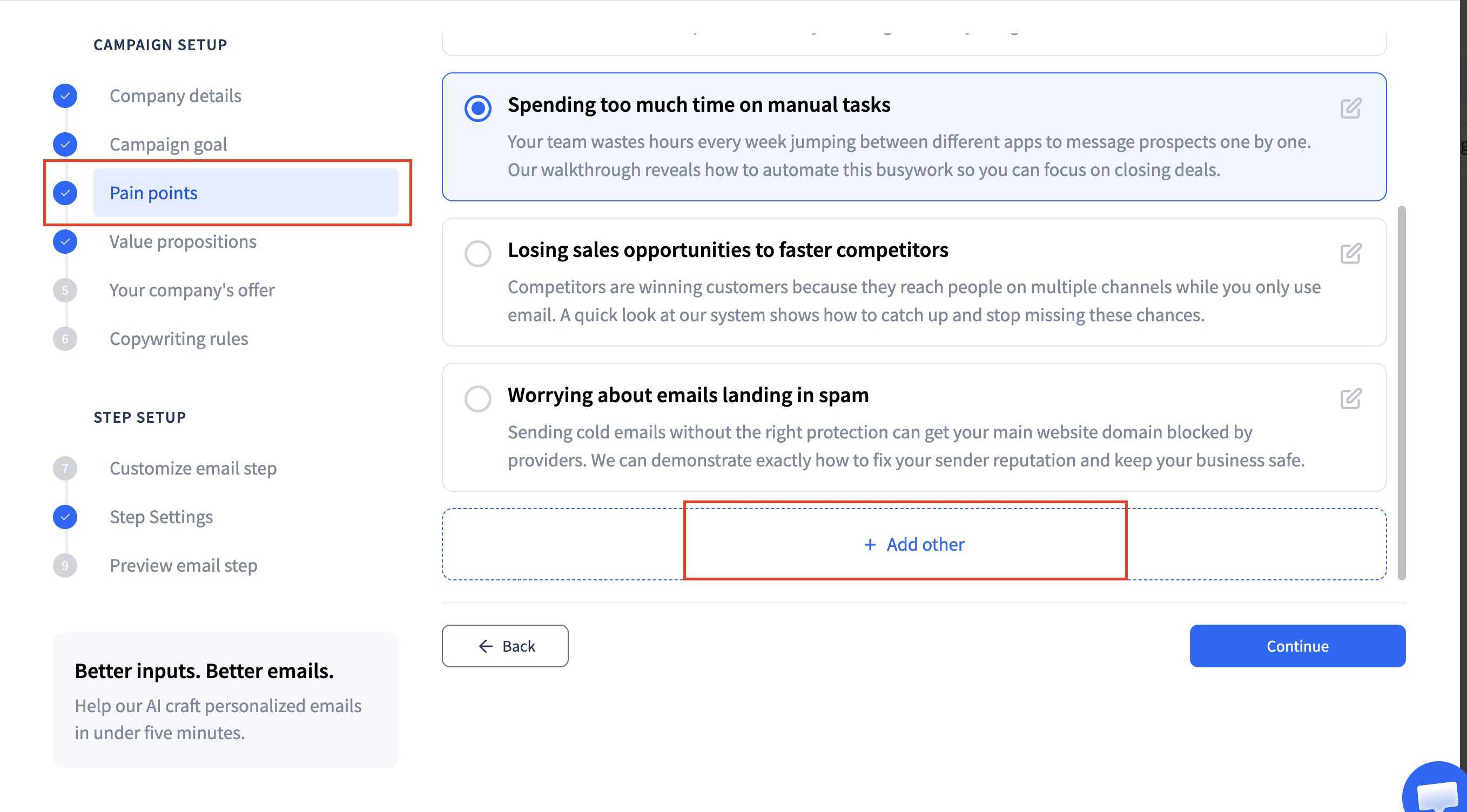
SmartReach auto-generates pain point options based on your campaign goal and company details. These represent challenges faced by your prospects and are tailored to your industry.
You'll see three to four suggested pain points. Select the one that fits best, or scroll down and add your own custom pain point using the option below the suggestions.
6. Choose a value proposition
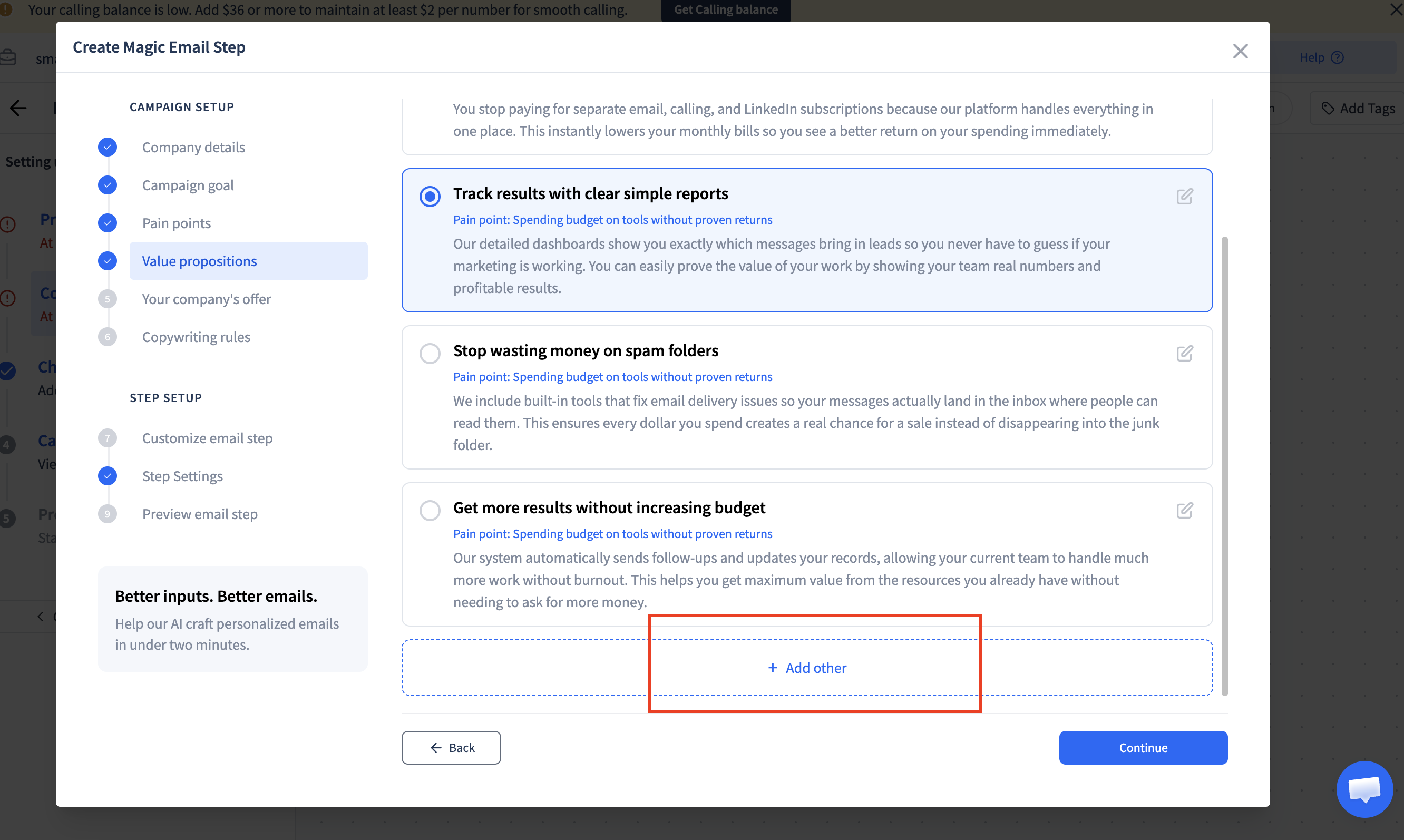
Based on the selected pain point, SmartReach auto-generates value propositions that explain how your product or service solves the problem.
You'll see three to four suggested options. Pick the one that fits, or add your own custom value proposition using the Add other option below the suggestions.
7. Define your company offer
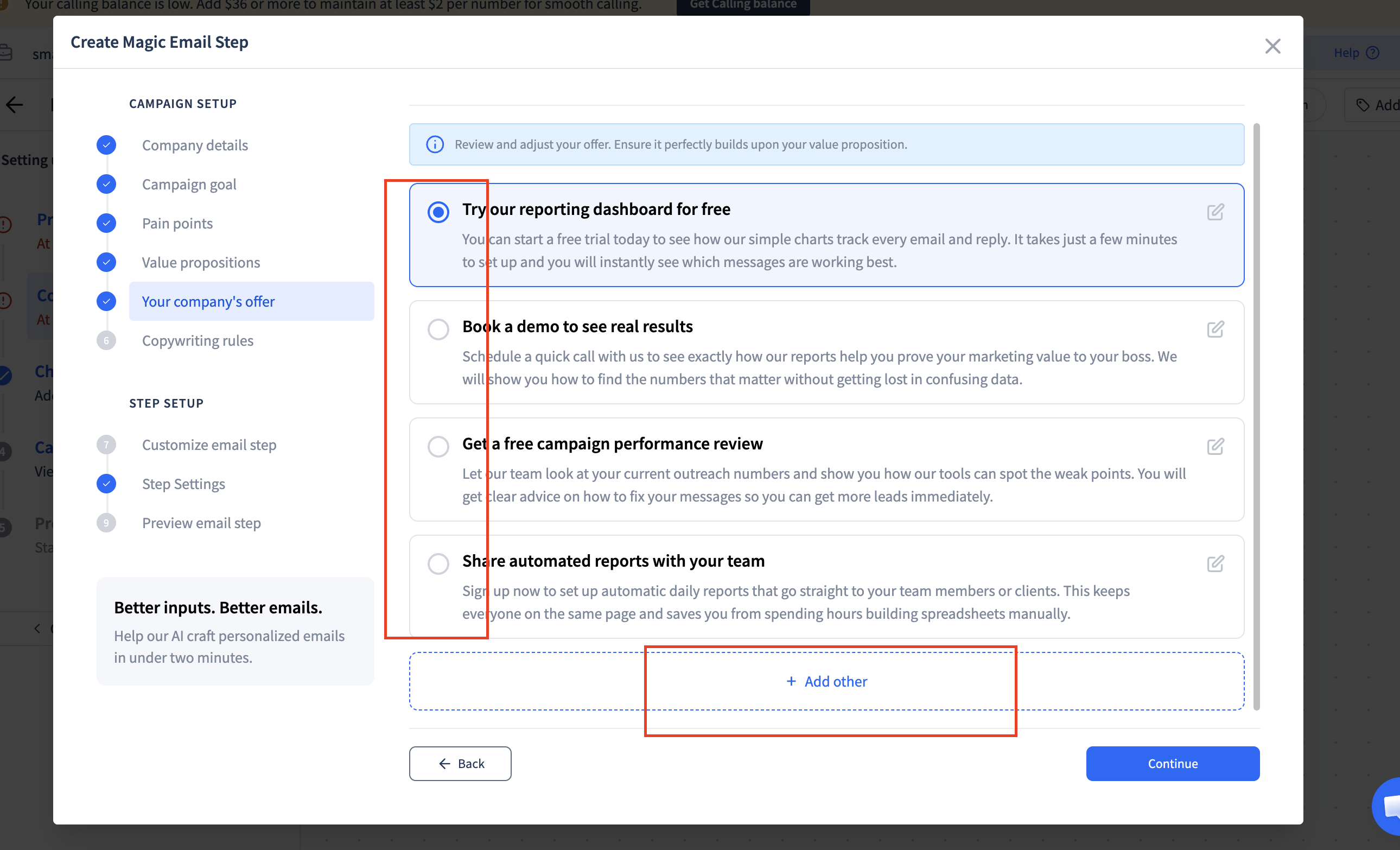
Specify what you're offering prospects through this campaign — for example, a demo, consultation, free trial, or downloadable guide.
SmartReach auto-generates the most relevant offer options based on your previous inputs. You'll see three to four suggestions. Select one, or add your own using the Add other option below the suggestions.
8. Set copywriting rules
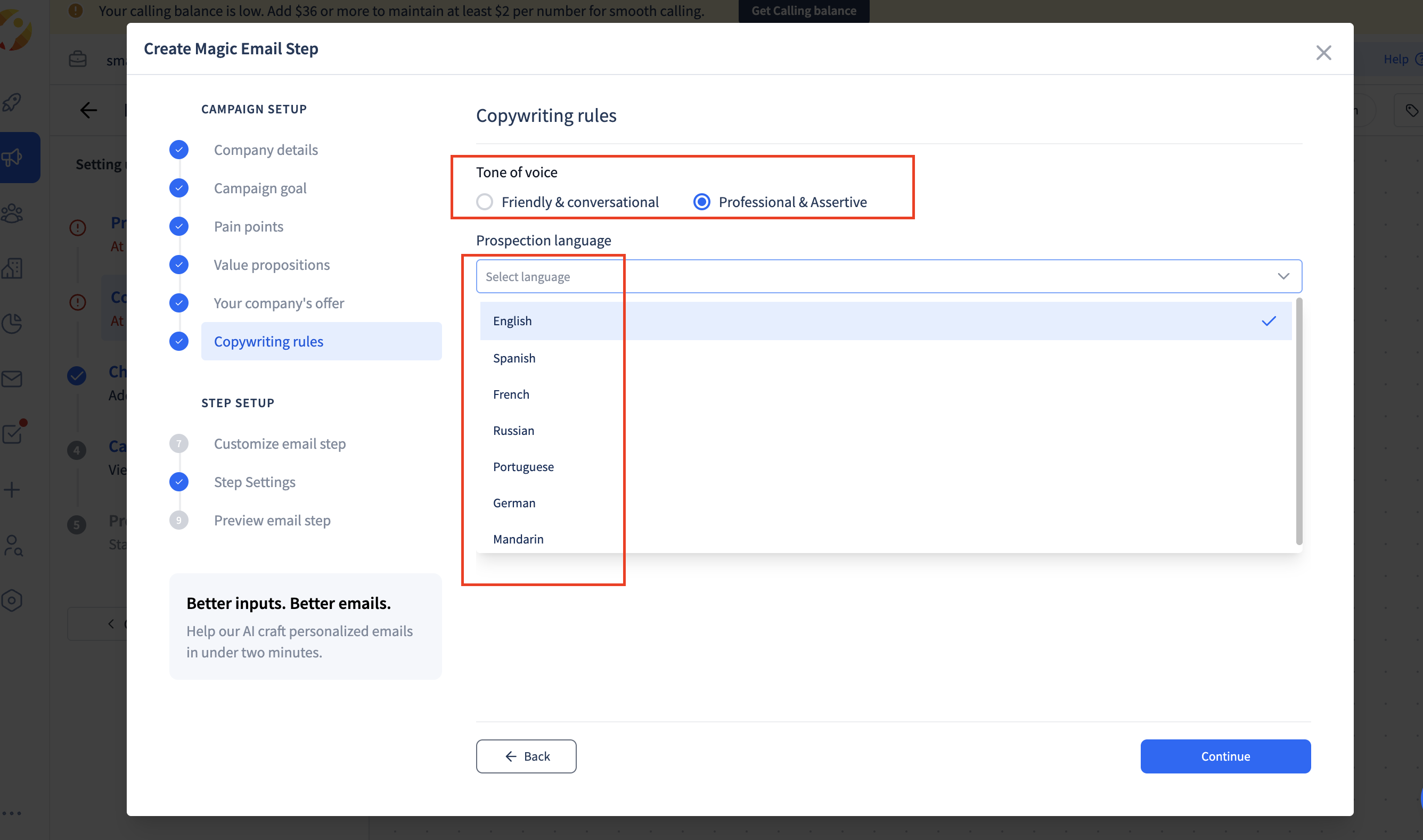
Choose the tone and language for your emails:
- Tone of voice: Friendly & conversational or Professional & assertive
- Prospection language: English, Spanish, French, Russian, Portuguese, German, Mandarin, and more
Step-level context (per Magic Email step)
9. Define step-specific context
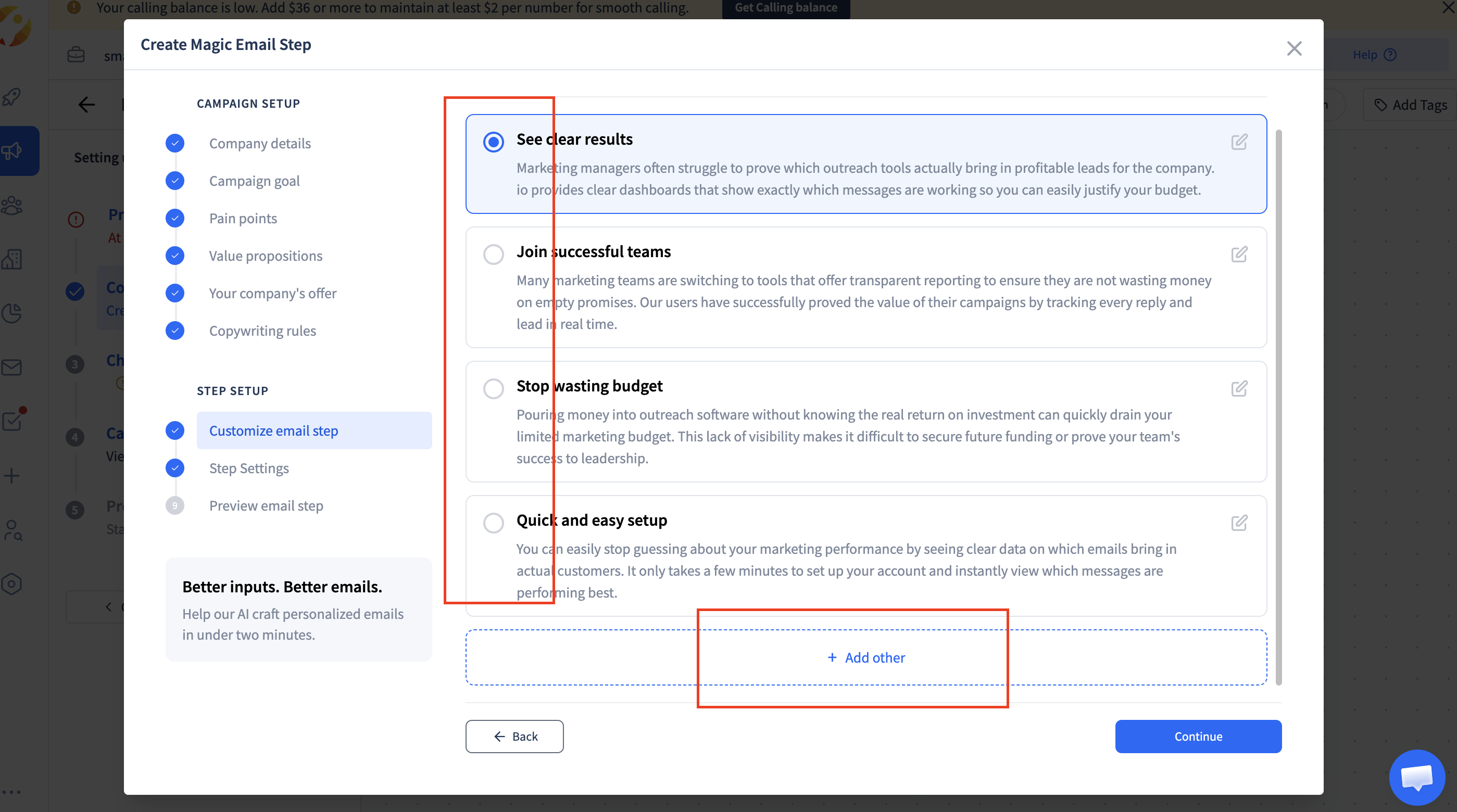
For each Magic Email step, define what message you want to convey and what action you want the prospect to take. This is where you differentiate the focus of each email in your sequence.
For example, if you're running a cold email campaign for an outreach tool:
- Step 1 : Focus on email deliverability — highlight how your tool helps emails land in the inbox instead of spam.
- Step 2: Shift emphasis to email infrastructure — talk about domain setup, warmup, or sender reputation.
- Step 3: Focus on team collaboration — show how your tool saves time by letting teams manage outreach together.
Campaign-level settings stay the same across all steps, but step-level context changes for each Magic Email step in your sequence. This is how you build a natural progression across your outreach without repeating the same message.
10. Copilot vs. Autopilot mode
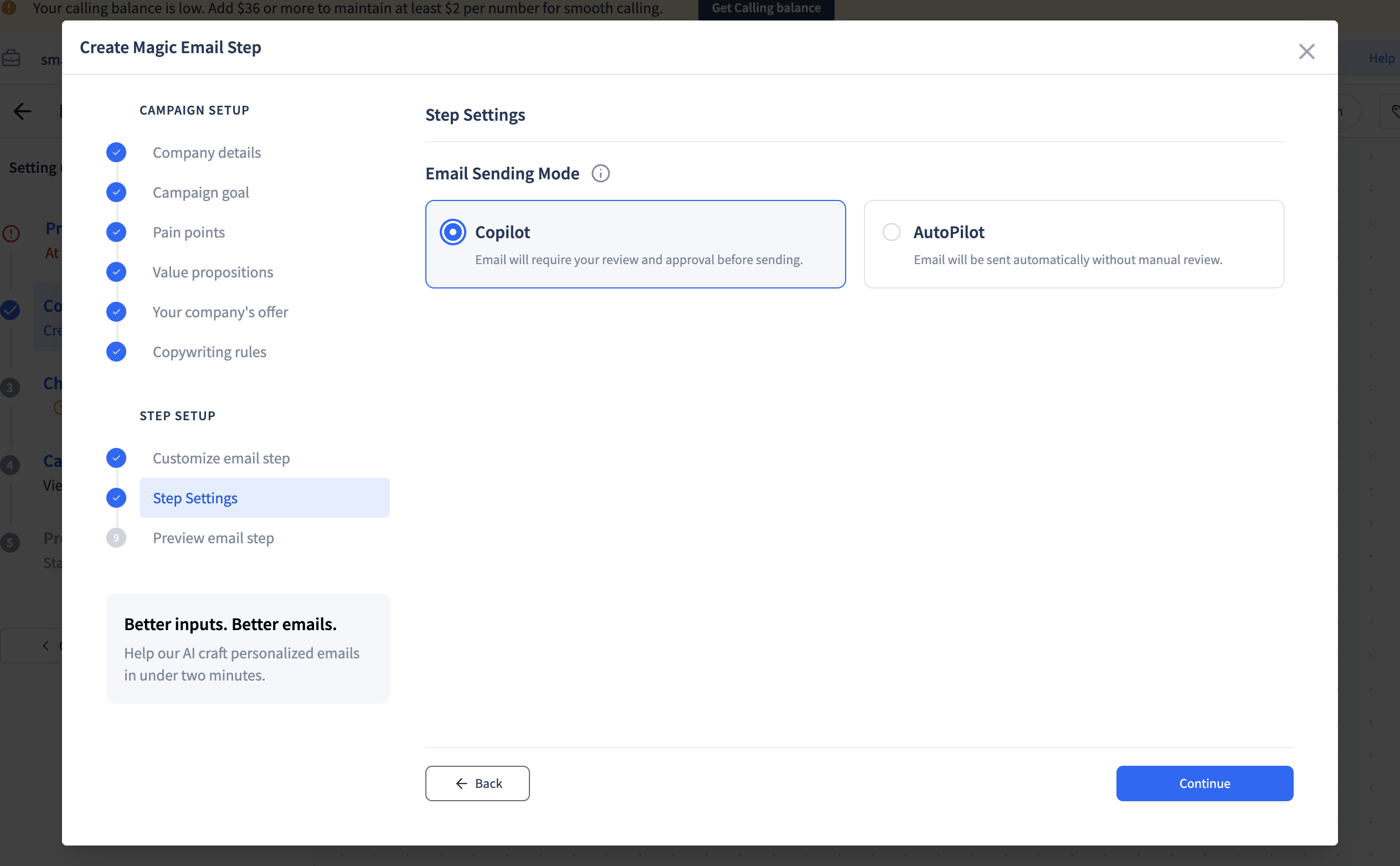
Each Magic Email step can run in one of two modes:
| Copilot Mode | Autopilot mode | |
|---|---|---|
| How it works | Emails go to the Approvals queue (via Task Manager) | Emails are sent automatically after email validation |
| Review | You review, edit, and approve before sending | No manual approval needed |
| Best For | Testing or sensitive campaigns | Scaling cold email outreach |
Tip: Start with Copilot mode. As Magic Email learns your writing style from your edits, you can switch to Autopilot for faster execution. You can change modes anytime, even after the campaign is live.
Preview your Magic Email
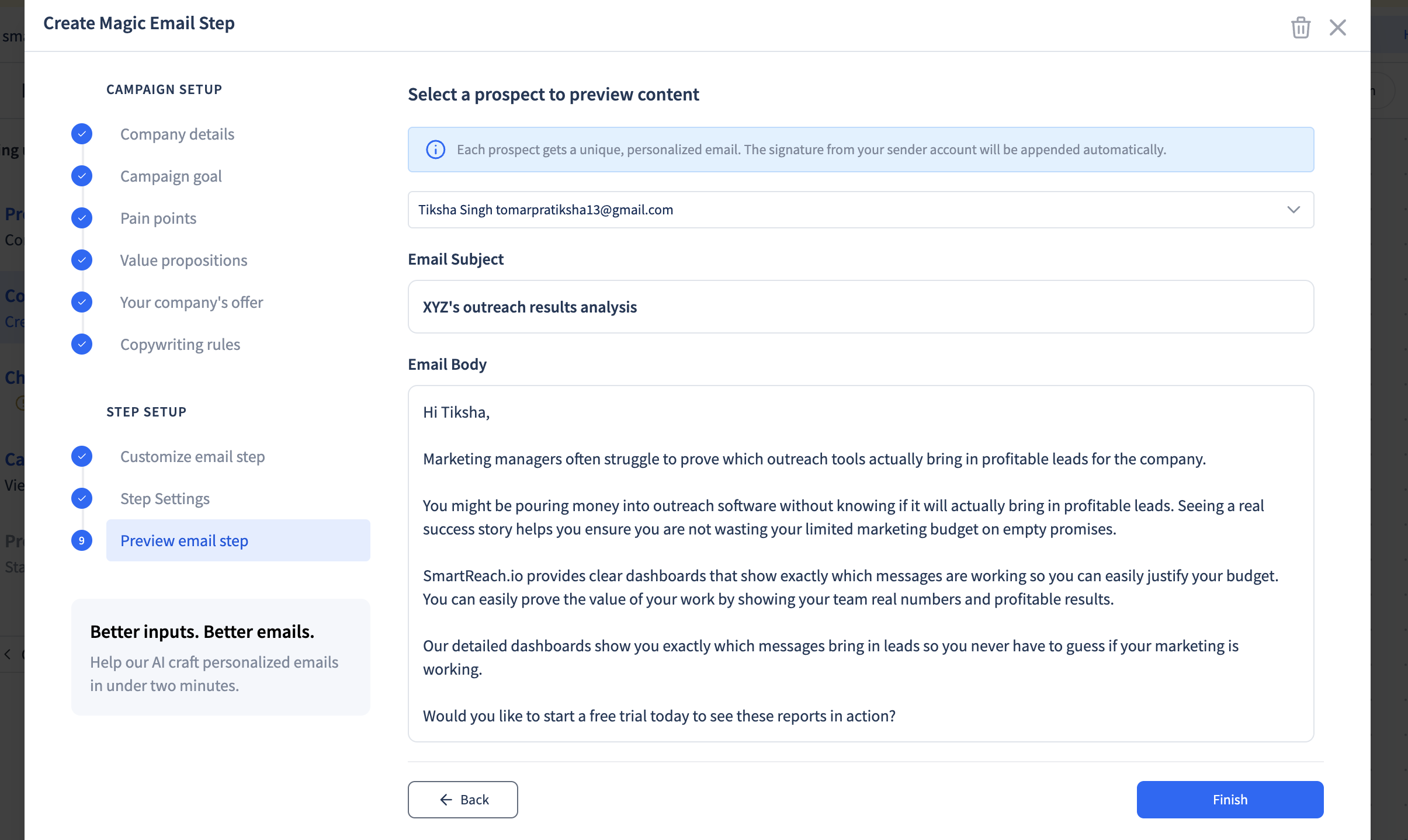
Before starting your campaign, you can preview sample subject lines and email bodies. Select a prospect from the dropdown to see how their personalized email will look.
Note: Email signatures are not generated by the AI. Set up your signature in Email Account Settings.
Email threads and follow-ups
- By default, the subject line remains the same across Magic Email steps, and all follow-up emails are sent in the same thread.
- Follow-ups are differentiated through step-level context, which controls the message focus for each step.
Editing after campaign launch
Once your campaign is running, some settings are locked while others remain editable.
| Cannot be edited | Can be edited |
|---|---|
| Company name | Pain points |
| Company website | Value proposition |
| Campaign goal | Company offer |
| - | Step-level context |
| - | Copilot / Autopilot mode |
Approvals and sending behavior
- In Copilot mode, emails appear in the Approvals queue, accessible through the Task Manager in SmartReach.
- You can edit the subject, body, and signature before approving.
- Approved emails are scheduled and sent within a few minutes.
- In Autopilot mode, emails are sent automatically after prospect email validation.
Frequently Asked Questions:
Can I edit emails generated by Magic Email?
Yes. In Copilot mode, every email goes to the Approvals queue (via Task Manager) where you can edit the subject line, body, and signature before sending. In Autopilot mode, emails are sent without manual review.
Does Magic Email work for follow-up emails?
Yes. You define the intent for each step using step-level context. For a follow-up, set the context to shift the focus (for example, from deliverability in step one to infrastructure in step two) and the AI generates follow-up messaging accordingly. Follow-ups are sent in the same email thread by default.
Can I use the same subject line across all Magic Email steps?
Yes. By default, the subject line remains the same across Magic Email steps, and follow-ups are sent within the same email thread.
Can I add manual merge tags like {{first_name}} in Magic Email?
No. Magic Email does not support manual merge tags. The AI automatically uses available prospect data (company name, job title, country, etc.) to personalize each email.
Can I switch between Copilot and Autopilot after the campaign starts?
Yes. You can change the sending mode for any Magic Email step at any time, even while the campaign is live.
What data does Magic Email use to personalize emails?
Magic Email combines your campaign-level inputs (company details, goal, pain points, value proposition, offer) with prospect-level data (company name, job title, location, and other available fields) to create each email. The quality of the generated emails depends heavily on the data you provide for each prospect. If you supply enriched data (such as company revenue, industry, recent funding, or tech stack) the emails will be much more relevant and personalized. Generic or incomplete prospect data leads to more generic output.
Does Magic Email add my email signature automatically?
No. Email signatures are not generated by the AI. Make sure your signature is set up in your Email Account Settings. It will be appended to each email automatically.
Where do I find the Approvals queue for Copilot mode?
The Approvals queue is located in the Task Manager within SmartReach. When a Magic Email step runs in Copilot mode, generated emails appear here for your review before sending.
Need help?
If you have questions or need help setting up Magic Email, reach out through the in-app chat on your SmartReach dashboard.
Updated about 3 hours ago